
Table of Contents
EXTERIORVIBE.BIZ.ID – Your Steam Deck’s battery health is a critical metric that indicates its maximum charge capacity compared to when the device was new. When your Steam Deck reports 80% battery health, it means the device can now only hold 80% of its original factory charge capacity.
This percentage isn’t a direct indicator of immediate failure but rather a sign of natural degradation over time. Understanding what this percentage signifies is the first step toward managing your portable gaming experience effectively.
Understanding Steam Deck Battery Degradation
Lithium-ion batteries, like those found in the Steam Deck, naturally degrade with age and usage cycles. Every time you fully charge and discharge the battery, it counts as a cycle, contributing to its eventual wear.
An 80% health reading typically suggests that your Steam Deck has undergone a significant number of these charge cycles. While still functional, you will notice a shorter playtime compared to when the device was new.
Factors Influencing Battery Health
Several factors accelerate battery degradation, with charging habits being a primary culprit. Constantly charging your Steam Deck to 100% and letting it deep discharge to 0% puts extra stress on the battery cells.
Extreme temperatures also play a significant role; operating or charging your device in very hot or very cold environments can permanently damage battery capacity. Excessive heat generated during intensive gaming sessions without proper ventilation can be particularly detrimental.
How to Check Your Steam Deck’s Battery Health
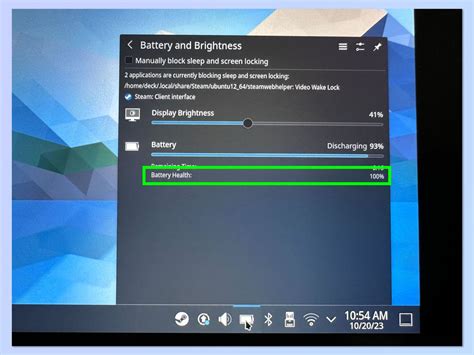
Valve has made it relatively straightforward to monitor your Steam Deck’s battery health directly on the device. You can access this information through the power menu in Gaming Mode.
For a more detailed view, especially when troubleshooting, you can switch to Desktop Mode and use the terminal to query battery information, providing exact health percentages and cycle counts.
Strategies to Maintain and Improve Battery Longevity
To slow down battery degradation, try to keep your Steam Deck’s charge between 20% and 80% whenever possible. This charging sweet spot reduces stress on the battery’s chemical components.
Utilize power management settings available in the Steam Deck’s operating system, such as limiting frame rates or adjusting screen brightness, to reduce overall power consumption. Furthermore, ensure your Steam Deck remains cool during heavy use by avoiding blocked vents and allowing sufficient airflow.
When to Consider Battery Replacement
While 80% battery health is manageable, a noticeable drop in playtime below your acceptable threshold might warrant a replacement. For many users, anything below 70-75% health significantly impacts the portable gaming experience.
Replacing the battery can either be a DIY project for those comfortable with electronics repair or handled by a professional service. Carefully weigh the costs and benefits, including potential warranty implications, before proceeding with a replacement.
Long-Term Outlook for Your Steam Deck
Monitoring and proactively managing your Steam Deck’s battery health is key to maximizing its lifespan and enjoyment. Regular checks and mindful charging practices will help you get the most out of your portable gaming powerhouse.
Even with 80% battery health, your Steam Deck remains a powerful device, and with proper care, it can continue to deliver excellent gaming experiences for years to come.
Written by: Sophia Martinez
