
Table of Contents
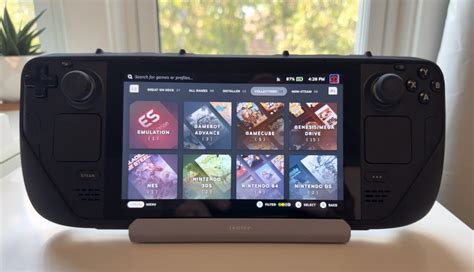
EXTERIORVIBE.BIZ.ID – The Steam Deck, Valve’s powerful handheld PC, has revolutionized portable PC gaming, offering a vast library of titles on the go. Beyond its native Steam games, the device excels as an emulation powerhouse, allowing players to revisit cherished classics from past consoles.
Emulation transforms your Steam Deck into a versatile retro gaming machine, capable of running software originally designed for other platforms. This opens up an immense catalog of games that are otherwise inaccessible on modern hardware.
Understanding Emulation on Steam Deck
Emulation refers to the process of running software designed for one system on a different system. On the Steam Deck, this means using specialized programs called emulators to mimic the hardware of older consoles like the PlayStation 2, Nintendo Switch, or even older arcade machines.
The Steam Deck’s Linux-based operating system, SteamOS, is highly conducive to running a wide array of emulation software. This flexibility makes it a prime candidate for a dedicated retro gaming device, offering impressive performance for most emulated titles.
Why Emulate on Your Steam Deck?
One primary reason to emulate is expanding your gaming library beyond what’s officially available on Steam. You can enjoy titles from systems that are no longer commercially supported or easily accessible, bringing them to a modern handheld.
Furthermore, emulation often allows for enhancements like higher resolutions, improved textures, and custom controller mappings, providing a superior experience to the original hardware. The Steam Deck’s robust controls and comfortable form factor are perfectly suited for these classic games.
Key Emulators and Tools for Steam Deck
Several excellent tools and emulators facilitate a smooth emulation experience on the Steam Deck. EmuDeck is arguably the most popular, acting as an all-in-one script that simplifies the installation and configuration of numerous emulators.
EmuDeck automatically sets up emulators like RetroArch (a multi-system frontend), Yuzu (Nintendo Switch), Ryujinx (Nintendo Switch), Dolphin (GameCube/Wii), PCSX2 (PlayStation 2), and PPSSPP (PSP). Each of these emulators targets specific systems, providing optimized performance for their respective game libraries.
Setting Up Your Steam Deck for Emulation
The setup process typically involves switching to Desktop Mode on your Steam Deck to download and run the EmuDeck installer. Once installed, EmuDeck guides you through configuring various emulators and setting up controller profiles.
After initial setup, you will need to acquire game ROMs (read-only memory files) and place them in the correct directories as specified by EmuDeck. Proper ROM management ensures your games are organized and easily accessible within the Steam Deck’s Game Mode.
Important Considerations for Emulation
While emulation offers vast possibilities, it’s crucial to be aware of the legal and ethical implications, as game ROMs often fall into a grey area of intellectual property rights. Users should ensure they own the original games before downloading ROMs.
Performance can also vary significantly between different emulators and specific games; some newer console emulators might require more fine-tuning to run optimally. However, with the right setup, your Steam Deck becomes an unparalleled portable retro gaming console.
Frequently Asked Questions (FAQ)
Is emulating games on the Steam Deck legal?
The legality of emulation is complex and varies by region, but generally, emulators themselves are legal. However, downloading and playing copyrighted game ROMs without owning the original game or obtaining proper licenses is typically considered illegal. It’s best practice to only play ROMs of games you legally own.
What is EmuDeck and why is it recommended for Steam Deck?
EmuDeck is a free collection of scripts that automates the installation and configuration of dozens of popular emulators, tools, and frontends on your Steam Deck. It simplifies the entire emulation process, setting up emulators, controller profiles, and even adding games to your Steam Library in Game Mode, making it highly recommended for beginners and experienced users alike.
Which game systems can I emulate on the Steam Deck?
The Steam Deck can emulate a wide range of systems, from classic consoles like NES, SNES, Sega Genesis, and N64, to more modern ones such as PlayStation 2, PlayStation Portable (PSP), Nintendo 3DS, Nintendo Wii, and even Nintendo Switch. Performance for newer consoles varies depending on the specific game and emulator.
How do I add game ROMs to my Steam Deck for emulation?
After installing EmuDeck, it creates specific folders on your Steam Deck’s storage (or SD card) for different console ROMs. You simply need to transfer your legally obtained game ROM files into these designated folders, usually via USB-C drive, network share, or directly from Desktop Mode. EmuDeck’s Steam ROM Manager then helps add these games to your Steam library.
Written by: Robert Miller
