
Table of Contents
EXTERIORVIBE.BIZ.ID – The Steam Deck offers an incredible portable PC gaming experience, but its compact design sometimes limits traditional desktop functionalities. Many users wonder about integrating a dedicated numeric keypad, or numpad, into their Steam Deck keyboard setup for specific games or productivity tasks.
While the default virtual keyboard is excellent for general text input, it lacks the numerical convenience of a full numpad. This guide explores the various ways to achieve numpad functionality, from software workarounds to external hardware solutions, ensuring you can enhance your Steam Deck’s utility.
Understanding Steam Deck’s Keyboard Options
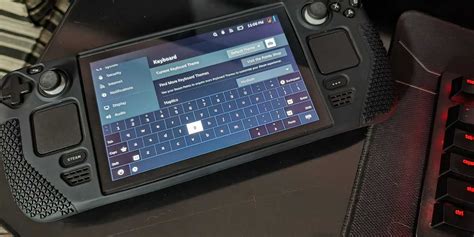
The Steam Deck primarily utilizes a virtual on-screen keyboard, which appears automatically when text input is required in Gaming Mode. This virtual interface is designed for touch-based interaction and features a standard QWERTY layout without a dedicated numpad section.
For more extensive typing or specialized inputs, the Steam Deck fully supports external keyboards via its USB-C port or Bluetooth connectivity. Connecting a physical keyboard, especially one with a full layout, is the most direct way to introduce a numpad to your setup.
Enabling Numpad Functionality in Desktop Mode
Accessing a numpad through software solutions is primarily feasible within the Steam Deck’s Desktop Mode. This environment operates much like a standard Linux PC, offering greater flexibility for installing applications and configuring input.
In Desktop Mode, you can connect a physical numpad or even remap existing keys using tools like `xmodmap` or third-party remapping utilities. However, natively implementing a virtual numpad overlay that seamlessly integrates with Gaming Mode is not a standard feature.
External Numpads: The Most Practical Solution
For users who frequently require a numpad, investing in a dedicated external numeric keypad is often the most practical and straightforward solution. These devices connect easily via USB or Bluetooth, providing instant, familiar numpad functionality.
Many compact numpads are available, making them portable enough to complement the Steam Deck without adding significant bulk. This approach ensures full compatibility and a comfortable user experience for tasks demanding precise numerical input.
Optimizing Your Numpad Experience
Once you have a numpad connected, you can further optimize its use for specific games or applications. In Desktop Mode, some emulators or older PC games may directly recognize numpad inputs for hotkeys or commands.
For Gaming Mode, you might need to utilize Steam Input’s robust remapping capabilities to assign numpad keys to in-game actions if the game itself doesn’t recognize them directly. This allows for deep customization, transforming your numpad into a powerful macro controller.
Ultimately, while the Steam Deck’s built-in keyboard design prioritizes portability over a full numpad, several effective solutions exist. Whether you opt for an external numpad or leverage Desktop Mode’s flexibility, integrating this functionality can significantly enhance your device’s versatility.
Choosing the right method depends on your specific needs and how frequently you require numerical input, but thankfully, options are readily available to customize your Steam Deck experience.
Written by: Emily Taylor
