
Table of Contents
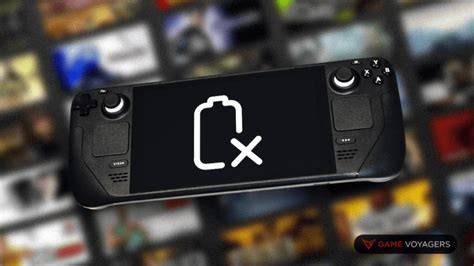
EXTERIORVIBE.BIZ.ID – Encountering a Steam Deck that refuses to charge can be a frustrating experience for any gamer. This guide provides clear, step-by-step troubleshooting to help you identify and resolve common charging issues.
Understanding the potential causes, from simple oversight to more complex hardware problems, is crucial for getting your handheld back into action. We will cover basic checks, software solutions, and hardware considerations to address why your Steam Deck might not be powering up.
Start with the Basics: Simple Checks
Before diving into complex solutions, always begin by checking the most obvious culprits. Ensure your power outlet is functional by testing it with another device, as a dead outlet is a surprisingly common reason for charging problems.
Next, carefully inspect your Steam Deck’s official power adapter and USB-C charging cable for any visible damage, such as frayed wires or bent connectors. Sometimes, a simple cable swap can resolve the issue immediately.
Software Glitches and Resets
Software anomalies can sometimes interfere with charging detection, even if the hardware is perfectly fine. Performing a hard reset can often clear temporary glitches by forcing the system to restart all its processes.
To do this, hold down the power button for approximately 10-15 seconds until the device completely shuts down, then release and press it again to power on. Additionally, ensure your Steam Deck’s operating system and firmware are up to date, as Valve frequently releases updates that include bug fixes for various issues.
Advanced Hardware Considerations
If basic checks and software resets don’t resolve the problem, the issue might lie with the hardware itself. Try using a different USB-C power adapter and cable, preferably another official Steam Deck charger or a high-quality, reputable third-party equivalent, to rule out a faulty charger.
Carefully examine the Steam Deck’s USB-C charging port for any debris, lint, or signs of physical damage like bent pins, which can obstruct the connection. Using compressed air to clear the port can sometimes help, but avoid inserting sharp objects.
When to Contact Support
If you’ve exhausted all troubleshooting steps and your Steam Deck still isn’t charging, it may indicate a deeper hardware malfunction. This could include issues with the internal battery, charging circuit, or a more significant port defect.
At this point, it is best to contact Valve’s official Steam Support for professional assistance. Provide them with a detailed description of the problem and the troubleshooting steps you’ve already taken to facilitate a quicker resolution or potential repair/replacement under warranty.
Written by: Michael Brown
