
Table of Contents
EXTERIORVIBE.BIZ.ID – Many Steam Deck users prioritize visual fidelity, often choosing to play without AMD’s FidelityFX Super Resolution (FSR). While FSR boosts performance, some prefer a native resolution experience to avoid potential visual artifacts.
This guide explores why disabling FSR on your Steam Deck might be preferred, offering strategies to optimize your gaming for clearer images without upscaling benefits.
Understanding FidelityFX Super Resolution (FSR)
AMD FidelityFX Super Resolution (FSR) is an upscaling technology designed to boost frame rates significantly. It renders games at lower resolutions, then intelligently “upscales” them to your display’s native resolution.
On the Steam Deck, FSR is particularly useful for achieving playable frame rates in demanding titles that would otherwise struggle at the device’s native 800p resolution.
Why Opt for “No FSR” on Your Steam Deck?
Playing on the Steam Deck with no FSR offers distinct benefits, primarily a sharper, more native image quality. Disabling FSR bypasses potential blurriness or minor artifacts often introduced by the upscaling algorithm.
Gamers prioritizing crystal-clear visuals often prefer running games at their rendered resolution, even if it means compromising other graphical settings for performance.
Challenges When Running Without FSR
Disabling FSR on your Steam Deck introduces significant performance overhead, as the integrated GPU must work harder. Without FSR’s frame rate boost, the device renders every pixel at the chosen resolution natively.
This often results in lower frame rates for newer, intensive games, requiring careful adjustment of other in-game settings to maintain playability and smoothness.
Optimizing Your Steam Deck Without FSR
Resolution and In-Game Graphics Settings
To compensate for running the Steam Deck with no FSR, begin by fine-tuning display and in-game settings. Experiment with resolutions like 720p or lower, coupled with a targeted refresh rate (e.g., 40Hz or 30Hz) for smoother perception.
Focus on reducing demanding options like shadow quality, anti-aliasing, and complex post-processing features; dropping these from “High” to “Medium” or “Low” often yields substantial frame rate improvements.
Advanced Performance Tools and Monitoring
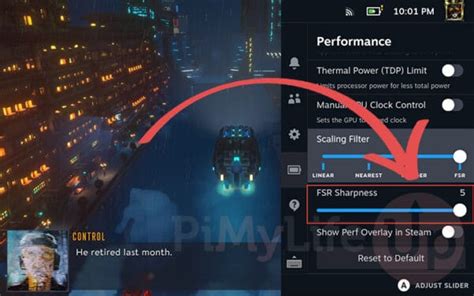
The built-in Performance Overlay is invaluable for real-time monitoring of frame rate, CPU, and GPU usage, helping identify performance bottlenecks immediately. Additionally, exploring custom Proton versions like Proton GE can sometimes offer unexpected gains for specific titles.
Advanced users might delve into the Steam Deck’s per-game TDP and GPU clock speed controls, allowing fine-tuning power consumption and frequency to squeeze out extra frames or extend battery life effectively.
Balancing Visuals and Performance: A Personal Choice
Ultimately, playing on the Steam Deck with no FSR is a personal choice, balancing crisp visuals against raw performance. It requires a hands-on optimization approach for a more aesthetically pleasing native image.
Experiment with these suggested settings and tools to discover the ideal configuration for your gaming library and personal visual standards on Valve’s portable powerhouse.
Frequently Asked Questions (FAQ)
What is FSR and why would I disable it on Steam Deck?
FSR (FidelityFX Super Resolution) is an AMD technology that renders games at lower resolutions and then upscales them to boost frame rates. Users might disable it on the Steam Deck to achieve a sharper, more native image quality, as FSR can sometimes introduce minor blurriness or visual artifacts.
Does turning off FSR significantly impact performance on the Steam Deck?
Yes, disabling FSR usually leads to a noticeable drop in performance, especially in graphically demanding games. The Steam Deck’s GPU has to work harder to render everything at native resolution, which can result in lower frame rates.
What are the best settings to use if I’m not using FSR on my Steam Deck?
If you’re not using FSR, you’ll need to adjust in-game settings significantly. Focus on lowering resolution (e.g., to 720p), reducing demanding graphics options like shadows and anti-aliasing, and potentially setting a lower refresh rate (like 30Hz or 40Hz) for perceived smoothness.
Can I still achieve good battery life without FSR on the Steam Deck?
Achieving good battery life without FSR can be challenging because the GPU is working harder. However, by aggressively lowering in-game settings, adjusting the refresh rate, and potentially tweaking the TDP and GPU clock limits in the Steam Deck’s performance menu, you can still optimize for battery longevity.
Written by: William Clark
