
Table of Contents
EXTERIORVIBE.BIZ.ID – The Steam Deck, Valve’s powerful handheld gaming PC, offers remarkable versatility right out of the box, extending its utility beyond portable play through its various ports. Understanding these **Steam Deck ports** is crucial for unlocking its full potential, whether you aim to connect to a large display or integrate external peripherals.
This guide will demystify the Steam Deck’s native connectivity options and explain how a docking station can transform your mobile gaming experience into a comprehensive desktop setup. By exploring these connections, users can fully customize their gaming and productivity environments.
Understanding the Native Steam Deck Ports
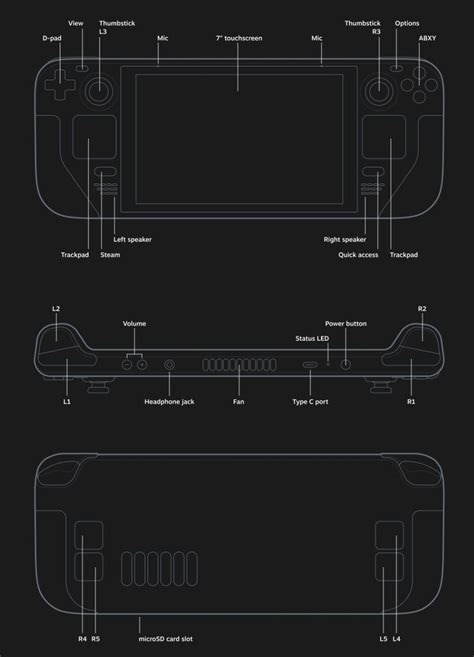
At its core, the Steam Deck features a limited but powerful set of native ports designed for essential functions. The primary connection is a single USB-C port, located at the top of the device.
This versatile USB-C port handles charging, data transfer, and even video output through DisplayPort Alt Mode, making it the central hub for most accessories. Additionally, the device includes a standard 3.5mm headphone jack, ensuring compatibility with a wide range of audio peripherals for immersive sound.
Expanding Connectivity with a Docking Station
While the native ports are functional, a docking station is essential for users looking to significantly expand the Steam Deck’s connectivity. A dock effectively transforms the handheld into a more traditional desktop or console-like experience, greatly enhancing its utility.
Most Steam Deck docks, including Valve’s official model, typically offer a suite of additional ports such as HDMI or DisplayPort for external monitors, multiple USB-A ports for accessories like keyboards and mice, and an Ethernet port for stable wired internet access. These expansions allow for a true plug-and-play setup, making transitions between handheld and docked modes seamless.
Players can choose between Valve’s official Steam Deck Dock, which ensures perfect compatibility and integration, or explore a variety of third-party docking solutions. Many third-party docks offer similar port arrays and sometimes additional features, providing flexibility based on user needs and budget.
Maximizing Your Gaming and Productivity Experience
Utilizing the Steam Deck’s ports, especially with a docking station, opens up a world of possibilities for an enhanced gaming and computing experience. Connecting to an external display allows you to enjoy your favorite PC games on a larger screen, complete with higher resolutions and frame rates if supported.
Furthermore, connecting external peripherals like a gaming keyboard, mouse, or even a specialized controller via the dock’s USB ports can dramatically improve gameplay for genres that benefit from precise inputs. Beyond gaming, the Steam Deck’s desktop mode, combined with a dock, transforms it into a capable Linux PC for web browsing, word processing, and other daily tasks.
Tips for Optimal Port Usage
To get the most out of your Steam Deck’s ports, always ensure you use high-quality cables and adapters, particularly for video output, to prevent signal issues. Remember that while playing graphics-intensive games on an external display, keeping the Steam Deck adequately charged is vital, which a dock typically facilitates.
Exploring various accessories that leverage the USB-C port or a docking station can truly personalize your Steam Deck experience, adapting it to your specific gaming and productivity needs. With the right setup, the Steam Deck becomes more than just a handheld; it’s a versatile computing platform.
Frequently Asked Questions (FAQ)
What is the main port on the Steam Deck?
The main port on the Steam Deck is a single USB-C port located on the top. This port is highly versatile, supporting charging, data transfer, and video output via DisplayPort Alt Mode.
Can I connect my Steam Deck to a TV?
Yes, you can connect your Steam Deck to a TV using its USB-C port. You will typically need a USB-C to HDMI adapter or a docking station that provides an HDMI or DisplayPort output to connect to your television.
Do I need a docking station for the Steam Deck?
While not strictly necessary for basic handheld play, a docking station is highly recommended if you want to connect your Steam Deck to external monitors, keyboards, mice, or wired internet. It significantly expands the device’s connectivity options.
Are third-party docks safe for the Steam Deck?
Generally, many third-party docks are safe and functional for the Steam Deck. However, it’s advisable to purchase from reputable brands and check reviews to ensure compatibility and prevent potential issues with power delivery or display output.
Can I charge the Steam Deck while using external peripherals?
Yes, when using a docking station, the Steam Deck can typically be charged simultaneously while you have external peripherals like a keyboard, mouse, or an external display connected. The dock usually provides pass-through power.
Written by: David Thomas
