
Table of Contents
EXTERIORVIBE.BIZ.ID – The Steam Deck offers an incredible portable gaming experience, but reliable internet access is crucial for downloads, updates, and online play. Many users wonder about advanced connection methods, specifically if the Steam Deck supports QR code Wi-Fi for quick setup.
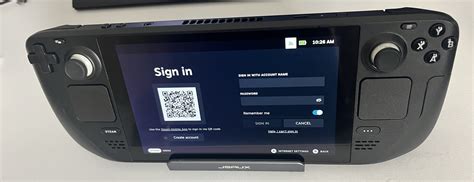
Currently, the Steam Deck’s native operating system does not feature a built-in option to connect to Wi-Fi networks by scanning a QR code. While convenient on smartphones, SteamOS relies on the traditional manual entry method for network credentials.
Connecting Your Steam Deck to Wi-Fi Manually
Connecting your Steam Deck to a Wi-Fi network is a straightforward process, ensuring you can quickly get online. Begin by accessing the Quick Access Menu by pressing the ‘STEAM’ button on your device, then navigate to the ‘Settings’ option.
Within the Settings menu, select ‘Internet’ to view available Wi-Fi networks in your vicinity. Choose your desired network from the list and proceed to enter the password or passphrase accurately.
After entering the password, confirm your selection, and your Steam Deck should attempt to connect to the network. A successful connection will be indicated by a Wi-Fi icon appearing in the top right corner of the screen.
Understanding the Absence of QR Code Wi-Fi
The concept of using QR codes for Wi-Fi connectivity is appealing due to its speed and error reduction compared to typing complex passwords. Despite its utility on other devices, Valve has not yet integrated this specific feature into SteamOS.
Users seeking this functionality might be accustomed to it from mobile devices or other smart gadgets, where QR code sharing of Wi-Fi details is common. For the Steam Deck, the design prioritizes a robust, console-like experience with direct input methods.
Optimizing Your Steam Deck Wi-Fi Connection
For the best gaming and downloading performance, consider a few tips to optimize your Wi-Fi connection. Positioning your Steam Deck closer to your router can significantly improve signal strength and reduce latency.
Most modern routers support both 2.4GHz and 5GHz Wi-Fi bands; generally, the 5GHz band offers faster speeds but with a shorter range. Experiment with both bands to find which provides the most stable and quickest connection for your setup.
If you encounter connection issues, try restarting your Steam Deck and your Wi-Fi router. Sometimes, a simple reboot can resolve minor network glitches and re-establish a stable connection.
Troubleshooting Common Connectivity Problems
Should your Steam Deck fail to connect, double-check that you are entering the correct Wi-Fi password. Passwords are often case-sensitive, so ensure proper capitalization.
Additionally, ensure your Wi-Fi network is not using an unsupported security protocol like WEP, which is outdated and less secure. Modern WPA2 or WPA3 protocols are widely supported and recommended for enhanced security.
Persistent issues may require forgetting the network and attempting to reconnect from scratch, or even checking for system updates on your Steam Deck. Valve frequently releases updates that can improve system stability and connectivity.
Conclusion
While QR code Wi-Fi connectivity isn’t a native feature on the Steam Deck, connecting to your network is still simple and reliable through manual input. By following these steps and optimization tips, you can ensure a smooth online experience.
Enjoy seamless downloads, updates, and online multiplayer gaming, leveraging the robust Wi-Fi capabilities of your portable PC. A stable connection is key to unlocking the full potential of your Steam Deck.
Frequently Asked Questions (FAQ)
Does the Steam Deck support Wi-Fi connection via QR code?
No, currently the Steam Deck’s native operating system (SteamOS) does not include a feature to connect to Wi-Fi networks by scanning a QR code. Users must manually enter network credentials.
How do I connect my Steam Deck to a Wi-Fi network?
To connect, press the ‘STEAM’ button to open the Quick Access Menu, navigate to ‘Settings,’ then ‘Internet.’ Select your Wi-Fi network from the list, enter the password, and confirm.
What should I do if my Steam Deck can’t find my Wi-Fi network?
First, ensure your router is on and broadcasting its signal. Try restarting both your Steam Deck and your router. Also, check if your network’s SSID (name) is hidden, and ensure it’s not using an outdated security protocol like WEP.
Is 2.4GHz or 5GHz Wi-Fi better for my Steam Deck?
The 5GHz band generally offers faster speeds but has a shorter range and is more susceptible to interference. The 2.4GHz band has a wider range and better penetration through walls, but slower speeds. It’s recommended to test both to see which provides the most stable and performant connection for your specific environment.
Written by: Emily Taylor
