
Table of Contents
EXTERIORVIBE.BIZ.ID – The Steam Deck, Valve’s powerful handheld gaming PC, offers a seamless way to play your favorite titles on the go. To truly master its capabilities and optimize your gaming sessions, understanding the Quick Access Menu (QAM) is essential. This versatile overlay provides immediate control over critical settings without interrupting your gameplay.
What is the Steam Deck Quick Access Menu?
The Quick Access Menu is a crucial overlay designed for on-the-fly adjustments to your Steam Deck’s settings. Unlike the main Steam button menu, which handles library, store, and broader system functions, the QAM focuses on immediate, context-sensitive controls. It empowers users to fine-tune performance, monitor battery, and manage connectivity settings effortlessly, all while a game is running.
This dedicated menu streamlines the user experience by centralizing frequently used options. Whether you need to adjust screen brightness or check your game’s frame rate, the QAM makes these actions instantaneous. It’s a key feature for ensuring an uninterrupted and optimized gaming session on the portable device.
Accessing and Navigating the QAM
Accessing the Quick Access Menu is incredibly simple, designed for quick engagement during gameplay. You can open the QAM by pressing the dedicated “…” (Quick Access) button located on the right side of your Steam Deck, below the right trackpad. This action brings up a sidebar overlay on the right side of your screen, presenting various tabs for different categories of settings.
Essential Tabs for Instant Control
Within the Quick Access Menu, you’ll find several distinct tabs, each dedicated to a specific category of settings and information. Familiarizing yourself with these tabs will greatly enhance your ability to manage your Steam Deck effectively. Each tab provides a unique set of controls to tweak your experience.
Performance Overlay & Settings
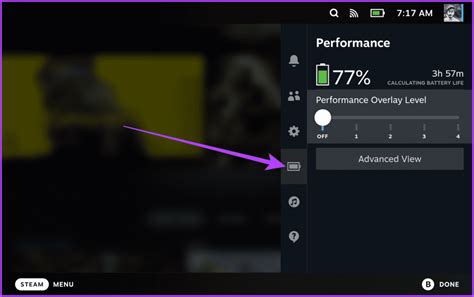
The Performance tab is a powerful tool for monitoring and adjusting your game’s technical parameters. Here, you can enable a performance overlay to see real-time data like FPS, CPU/GPU usage, and power consumption. You can also adjust crucial settings such as Thermal Power Limit (TDP), GPU Clock Speed, Frame Rate Limiter, and enable FidelityFX Super Resolution (FSR) for enhanced visuals and performance in supported titles.
Connectivity & Audio Controls
Managing your wireless connections and audio output is straightforward through the Connectivity and Audio tabs. The Connectivity tab allows you to quickly toggle Wi-Fi and Bluetooth, as well as enable Airplane Mode. Meanwhile, the Audio tab provides instant control over overall system volume and lets you select your preferred audio output device, such as headphones or external speakers.
Battery & Brightness Adjustments
Keeping an eye on your device’s power status and screen visibility is easy with these dedicated tabs. The Battery tab displays your current battery life percentage and estimated remaining playtime, alongside charging status. The Brightness tab offers a simple slider to adjust your screen’s brightness, crucial for comfortable viewing in various lighting conditions.
Quick Settings & Notifications
The Quick Settings tab offers various utility functions that can be useful during gameplay. This includes taking screenshots, accessing the on-screen keyboard, and enabling the magnifier for better readability. The Notifications tab keeps you informed of background activities, such as game updates, download progress, and friend activity, ensuring you don’t miss important alerts.
Maximizing Your Gaming Experience
Mastering the Steam Deck’s Quick Access Menu is key to unlocking the full potential of your portable gaming experience. It allows for dynamic adjustments that cater to specific game requirements or personal preferences without disrupting immersion. By utilizing these quick controls, you can ensure smoother performance, extend battery life, and maintain optimal comfort during extended play sessions.
In conclusion, the Quick Access Menu is an indispensable feature that truly sets the Steam Deck apart as a versatile handheld PC. Its intuitive design and comprehensive controls empower gamers to customize their experience on the fly. Take the time to explore each tab and discover how this powerful menu can elevate your gaming sessions.
Frequently Asked Questions (FAQ)
How do I open the Quick Access Menu on my Steam Deck?
You can open the Quick Access Menu by pressing the dedicated ‘…’ (Quick Access) button located on the right side of your Steam Deck, just below the right trackpad.
What kind of settings can I adjust in the Performance tab?
The Performance tab allows you to view a performance overlay for FPS and usage, and adjust settings like Thermal Power Limit (TDP), GPU Clock Speed, Frame Rate Limiter, and enable FidelityFX Super Resolution (FSR).
Can I check my battery life through the Quick Access Menu?
Yes, the Battery tab within the Quick Access Menu displays your current battery life percentage, estimated remaining playtime, and charging status.
What’s the main difference between the Steam button menu and the Quick Access Menu?
The Steam button menu (accessed via the Steam button) provides access to your game library, store, chat, and broader system settings. The Quick Access Menu (accessed via the ‘…’ button) focuses on immediate, in-game adjustments like performance, connectivity, battery, and display settings.
Written by: Sophia Martinez
