
Table of Contents
EXTERIORVIBE.BIZ.ID – The Steam Deck, Valve’s powerful handheld PC, offers an unparalleled portable gaming experience. A crucial element to maximizing this experience lies within its Quick Settings menu, allowing gamers to make immediate adjustments without pausing or exiting a game.
These on-the-fly controls are essential for optimizing performance, managing battery life, and tailoring your experience to specific games or environments. Understanding and utilizing them effectively can significantly elevate your gameplay.
Accessing Your Quick Settings Panel
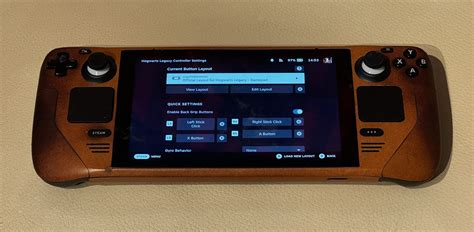
Accessing the Quick Settings menu on your Steam Deck is incredibly straightforward. Simply press the ‘…’ (Quick Access) button located on the right side of the device, just below the right trackpad.
This action instantly overlays a panel on your screen, providing access to various configurable options while your game continues to run in the background. It’s designed for seamless interaction and quick adjustments.
Essential Categories Within Quick Settings
The Quick Settings panel is organized into several intuitive tabs, each dedicated to a different aspect of your Steam Deck’s functionality. Navigating these tabs allows for granular control over your device.
Each tab houses a set of controls that can dramatically alter your gaming session, from visual fidelity to system performance.
Performance Tab: Fine-Tuning Your Gameplay
The Performance tab is arguably the most critical for gamers, offering deep control over system resources. Here, you can adjust the Frame Rate Limiter, setting a cap on your game’s FPS to balance smoothness and battery efficiency.
You can also modify the Thermal Power (TDP) Limit and GPU Clock, which directly impact performance and power consumption, alongside enabling FidelityFX Super Resolution (FSR) for enhanced upscaling. The Performance Overlay level also helps monitor real-time metrics like FPS, GPU usage, and battery life.
Display and Audio Controls: Immersion at Your Fingertips
Beyond performance, Quick Settings provide easy access to display and audio adjustments. You can quickly modify screen brightness to suit your environment, ensuring visibility indoors or outdoors.
Adjusting the overall volume and selecting your preferred audio output device (speakers, headphones, or Bluetooth) are also just a few taps away, maintaining audio quality and personal preference.
Connectivity and Other Options: Seamless Integration
The Quick Settings menu also hosts vital connectivity options, allowing you to toggle Wi-Fi and Bluetooth connections on or off instantly. This is useful for saving battery or troubleshooting network issues.
Furthermore, you can manage controller settings, view notifications, and access general system settings directly from this convenient overlay, streamlining your device management.
Optimizing Your Gaming with Quick Settings
Mastering the Steam Deck’s Quick Settings means learning to balance performance with battery life and visual quality. For graphically demanding games, you might increase TDP and GPU clock while monitoring temperatures.
For lighter indie titles, lowering the FPS limit and TDP can significantly extend your playtime, ensuring your Steam Deck adapts to every game and situation.
Conclusion
The Steam Deck Quick Settings menu is a powerful tool designed to give users immediate control over their gaming experience. Its intuitive design and comprehensive options empower players to optimize performance, manage resources, and customize their device on the fly.
By understanding and utilizing these settings, every Steam Deck owner can unlock the full potential of their handheld, ensuring a personalized and enjoyable gaming journey.
Frequently Asked Questions (FAQ)
What are Steam Deck Quick Settings?
Steam Deck Quick Settings are an overlay menu accessible during gameplay that allows users to quickly adjust various system parameters like performance settings (FPS, TDP, GPU Clock), display brightness, audio volume, and connectivity options without needing to exit the current game.
How do I access Quick Settings on my Steam Deck?
You can access the Quick Settings menu by pressing the ‘…’ (Quick Access) button located on the right side of your Steam Deck, just below the right trackpad. This will bring up an overlay panel on your screen.
What kind of performance settings can I adjust in Quick Settings?
In the Performance tab of Quick Settings, you can adjust the Frame Rate Limiter, Thermal Power (TDP) Limit, GPU Clock, enable FidelityFX Super Resolution (FSR), and choose the level of the Performance Overlay to monitor real-time metrics.
Can Quick Settings improve my game’s performance or battery life?
Yes, by adjusting settings like the FPS Limiter, TDP Limit, and GPU Clock, you can find a balance that either boosts performance for more demanding games or conserves battery life for longer play sessions, optimizing your experience based on your current needs.
Written by: Sarah Davis
