
Table of Contents
EXTERIORVIBE.BIZ.ID – The Steam Deck, Valve’s popular handheld gaming PC, offers an excellent portable gaming experience. However, like any computer, it can occasionally encounter software issues that require advanced troubleshooting, making the Steam Deck recovery image an essential tool for every user.
This powerful utility allows you to reinstall, restore, or repair your Steam Deck’s operating system (SteamOS) if it becomes corrupted, unresponsive, or if you simply wish to perform a clean factory reset. Understanding how to use this recovery image ensures you can always get your device back into working order.
What is the Steam Deck Recovery Image?
The Steam Deck recovery image is a specially prepared operating system image provided by Valve. It includes a minimal version of SteamOS along with various tools designed specifically for system maintenance and restoration.
Essentially, it acts as a bootable diagnostic and reinstallation environment, separate from your device’s main operating system. This image is crucial for addressing deep-seated software problems that cannot be resolved through standard restarts or updates.
When to Utilize the Recovery Image
There are several critical scenarios where deploying the Steam Deck recovery image becomes necessary. It’s not just for dire emergencies but also for routine maintenance or significant changes.
You should consider using the recovery image if your Steam Deck experiences persistent freezing, fails to boot, encounters critical system errors, or if you’re looking to completely wipe the device for a fresh start or before selling it. It’s also invaluable for recovering from failed updates or when experimenting with alternative operating systems that might have corrupted the SteamOS installation.
How to Create and Use a Bootable Recovery Drive
The process of using the recovery image begins with downloading it from Valve’s official support page and creating a bootable USB drive. You will need a USB-C drive or an adapter for a standard USB drive, along with a tool like Rufus (for Windows) or balenaEtcher (for Windows, macOS, and Linux) to write the image.
Once your bootable drive is ready, power off your Steam Deck, connect the USB drive, and then power it on while holding down the Volume Down button and the Power button. This action will bring up the Boot Manager, allowing you to select your USB drive to start the recovery process.
Understanding the Recovery Options
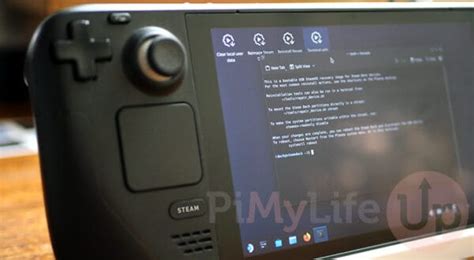
Upon booting into the recovery environment, you’ll be presented with several options to address your Steam Deck’s issues:
- Reimage Steam Deck: This option performs a complete factory reset, erasing all data and reinstalling SteamOS. It’s ideal for critical system corruption or when selling the device.
- Clear local user data: This cleans user-specific data and settings while preserving the core SteamOS installation, useful for resolving user profile issues.
- Reinstall SteamOS: This reinstalls the operating system without formatting the home partition, potentially fixing OS issues while keeping your games and files.
- Recovery tools: Provides access to a desktop environment with various Linux utilities for advanced troubleshooting, such as partition management or password resets.
Important Considerations Before Recovery
Always back up any critical game saves or personal files to the cloud or an external drive before initiating any recovery process, especially a full reimage. Ensure your Steam Deck is fully charged or connected to power during the entire procedure to prevent power loss interruptions.
A stable internet connection may also be required for certain recovery options, particularly for downloading the latest SteamOS components. Following these precautions will help ensure a smooth and successful recovery experience for your Steam Deck.
Frequently Asked Questions (FAQ)
What is the Steam Deck recovery image?
The Steam Deck recovery image is a bootable operating system image provided by Valve. It contains a minimal SteamOS environment and tools to repair, reinstall, or factory reset your Steam Deck’s software.
When should I use the Steam Deck recovery image?
You should use it for critical system issues like failure to boot, persistent freezing, corrupted operating system files, or if you want to perform a clean factory reset of your device.
How do I get the Steam Deck recovery image?
You can download the official Steam Deck recovery image directly from Valve’s Steam Deck support website.
What tools do I need to create a bootable USB recovery drive?
You’ll need a USB-C drive (or adapter) and a utility like Rufus (for Windows) or balenaEtcher (for Windows, macOS, Linux) to write the downloaded image to the USB drive.
Will using the recovery image erase my games and data?
The ‘Reimage Steam Deck’ option will erase all data, including games. Other options like ‘Reinstall SteamOS’ or ‘Clear local user data’ might preserve games, but it’s always recommended to back up important data beforehand.
Written by: Robert Miller
