
Table of Contents
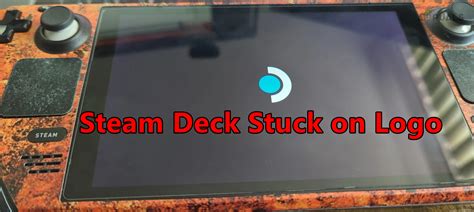
EXTERIORVIBE.BIZ.ID – Encountering your Steam Deck stuck on the logo can be incredibly frustrating, halting your gaming experience before it even begins. This common issue often indicates a software glitch or, less frequently, a hardware problem preventing the device from booting correctly.
Understanding the potential causes and systematic troubleshooting steps can help you resolve this problem efficiently. We will guide you through a series of actions, from simple reboots to more advanced recovery options, to get your Steam Deck back in action.
Understanding the Boot Loop Issue
When your Steam Deck freezes on the logo, it’s typically caught in a boot loop or a stalled loading sequence. This might stem from a corrupted system update, an incompatible software installation, or even insufficient power preventing a full system initialization.
Identifying the root cause is crucial for applying the most effective fix, though often a general troubleshooting approach can resolve many such scenarios. Do not panic, as many users have successfully overcome this very problem with simple steps.
Initial Troubleshooting Steps
Perform a Hard Reset
One of the quickest and most effective initial fixes for a Steam Deck stuck on the logo is a hard reset. Hold down the Power button for approximately 10-15 seconds until the device completely shuts off. Afterward, press the Power button again to attempt a fresh boot.
This action can clear temporary software glitches or memory issues that might be preventing the Steam Deck from progressing past the startup screen. It’s a safe first step that doesn’t affect your installed games or data.
Check Charging and Peripherals
Ensure your Steam Deck is adequately charged, as a low battery can sometimes cause boot failures. Connect it to the official charger and leave it for at least 15-30 minutes before attempting to power it on again. Always use the charger that came with your Steam Deck to ensure proper power delivery.
Additionally, disconnect any external peripherals such as docks, USB hubs, or external storage devices. These accessories can sometimes interfere with the boot process, causing the system to hang. Once disconnected, try rebooting the device.
Advanced Recovery Options
Boot into Recovery Mode
If a hard reset doesn’t resolve the issue, you might need to access the Steam Deck’s recovery menu. To do this, hold down the Volume Down button and the Power button simultaneously until you hear a chime, then release them. This will bring up the boot manager.
From here, you can select ‘Recovery Environment’ to access various repair options, including reinstalling SteamOS or performing a factory reset. Be cautious with these options, as a factory reset will erase all user data and installed games.
Reinstall SteamOS
For persistent issues, a full reinstallation of SteamOS might be necessary, though this should be considered a last resort. You will need a USB drive and another computer to create a bootable SteamOS recovery image. Detailed instructions are available on Valve’s official support website.
This process completely wipes and reinstalls the operating system, often resolving deep-seated software corruption issues. While effective, it means you’ll need to reinstall all your games and reconfigure your settings afterward.
When to Contact Steam Support
If all troubleshooting steps fail and your Steam Deck remains stuck on the logo, it might indicate a hardware fault. In such cases, it is best to contact Steam Support directly for further assistance. Provide them with a detailed description of the issue and the steps you’ve already taken.
They can offer advanced diagnostics or arrange for a repair or replacement if your device is still under warranty. Timely communication with support ensures you get the most appropriate resolution for your specific situation.
Written by: Michael Brown
