
Table of Contents
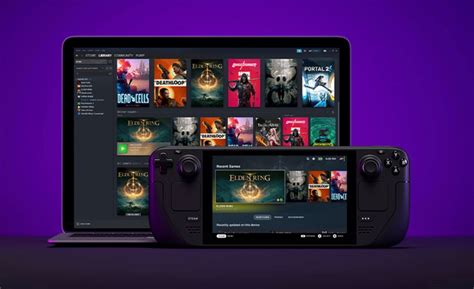
EXTERIORVIBE.BIZ.ID – The Steam Deck UI is the core interface users interact with on Valve’s innovative portable gaming PC. It is meticulously crafted to deliver a seamless, console-like experience, perfectly optimized for handheld play and intuitive touch input.
At its foundation, the Steam Deck runs SteamOS, a Linux-based operating system specifically tailored for gaming. Upon booting the device, you are primarily greeted by “Gaming Mode,” a streamlined, full-screen user interface dedicated to your extensive game library and the integrated Steam Store. This mode ensures immediate access to your titles and system settings without any unnecessary distractions.
Navigating Your Game Library and Store
The Steam Deck’s user interface excels in presenting your vast Steam game library in an exceptionally organized and intuitive manner. Games can be effortlessly filtered, sorted, and launched directly from the main menu, complete with rich artwork and detailed information. This dedicated focus on accessibility makes finding and playing your favorite titles incredibly straightforward for every user.
A fully integrated Steam Store is seamlessly built into the UI, enabling users to browse, purchase, and download new games directly from their device. This sophisticated integration mirrors the full-fledged desktop Steam client but is precisely optimized for the handheld’s display and controls, making game discovery both convenient and effortless.
Quick Access and Customization
A critical component of the interface is the Quick Access menu, which is instantly summoned with a dedicated button, providing immediate access to vital performance settings, Wi-Fi, Bluetooth, and battery information. This feature allows for on-the-fly adjustments to graphics, frame rates, and power consumption, significantly enhancing the gaming experience without ever having to leave your active game. Furthermore, comprehensive system settings are readily accessible for deeper customization and efficient device management.
Unlocking Desktop Mode for Versatility
While its primary focus is undeniably on gaming, the Steam Deck also offers a robust “Desktop Mode,” powered by KDE Plasma, which is easily accessible through the UI. This mode ingeniously transforms the handheld into a highly versatile mini-PC, enabling users to install non-Steam software, browse the web, or perform general computing tasks with ease. It provides unparalleled flexibility for those who wish to extend the device’s capabilities far beyond its initial gaming-centric design.
In essence, the Steam Deck UI stands as a remarkable achievement in portable gaming interface design, successfully blending powerful functionality with elegant simplicity. It consistently delivers an intuitive, powerful, and highly customizable experience, firmly solidifying the Steam Deck’s esteemed position as a leading platform in portable gaming.
Frequently Asked Questions (FAQ)
What is ‘Gaming Mode’ on the Steam Deck UI?
Gaming Mode is the primary interface users encounter on the Steam Deck. It’s a streamlined, full-screen UI optimized for playing games, browsing the Steam library, and accessing the integrated Steam Store, designed for easy navigation with handheld controls.
Can I customize the Steam Deck’s user interface?
Yes, while Gaming Mode offers a consistent experience, various system settings allow for customization of performance, display, and controller preferences. Additionally, Desktop Mode provides a full KDE Plasma environment, offering extensive customization options typical of a desktop operating system.
How does the Steam Deck UI differ from the standard Steam client on PC?
The Steam Deck UI is specifically designed for a handheld, touch-enabled device, featuring larger icons, simplified navigation, and optimization for controller input. While it contains the same core functionalities like the library and store, its presentation and interaction methods are tailored for the portable form factor, aiming for a console-like experience.
How do I switch to Desktop Mode on the Steam Deck?
To switch to Desktop Mode, you typically access it through the Steam Deck’s system menu within Gaming Mode. There’s an option to ‘Switch to Desktop’ which will transition the device to a full Linux desktop environment (KDE Plasma), offering traditional PC functionalities.
Written by: Michael Brown
