
Table of Contents
EXTERIORVIBE.BIZ.ID – Encountering issues with your Steam Deck USB hub can be frustrating, especially when you’re trying to expand its connectivity or dock it to a larger display. A non-functional USB hub can prevent you from using external peripherals like keyboards, mice, or even external storage. This guide will walk you through common reasons why your Steam Deck USB hub might not be working and provide actionable steps to resolve the problem efficiently.
Initial Checks: Connectivity and Power
Before delving into complex solutions, always start with the basics to rule out simple errors. Ensure all cables are securely plugged into their respective ports on both the Steam Deck and the USB hub. Sometimes, a loose connection is the sole culprit behind connectivity issues.
Verify that your USB hub is receiving adequate power, especially if it’s a powered hub or if you’re connecting high-power devices. A lack of sufficient power can lead to intermittent functionality or complete failure of connected peripherals. Try connecting the hub to a different power outlet or using the Steam Deck’s original charger for the hub if it supports pass-through charging.
Test Different Ports and Devices
To pinpoint the problem, try testing the USB hub with another device, such as a laptop or a different computer. If the hub works flawlessly with another device, the issue likely resides with your Steam Deck’s configuration or hardware. Conversely, if the hub fails across multiple devices, it might be faulty and require replacement.
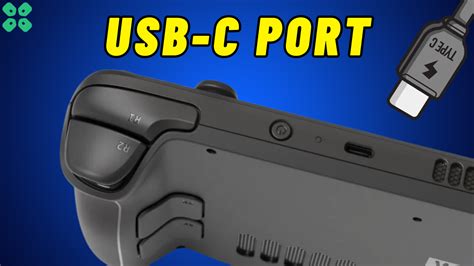
Additionally, attempt connecting a different USB device directly to your Steam Deck’s USB-C port (without the hub) to see if the port itself is functional. This helps determine if the problem is specific to the hub or a broader issue with the Steam Deck’s USB capabilities. Always isolate variables to diagnose problems effectively.
Steam Deck Software and Firmware Updates
Outdated SteamOS software or firmware can sometimes cause compatibility issues with external accessories. Regularly check for and install any available system updates for your Steam Deck. Valve frequently releases updates that include bug fixes and improved hardware compatibility.
A simple restart of your Steam Deck can also resolve temporary software glitches that might be preventing the USB hub from being recognized. Power cycle the device completely, then boot it up again to refresh its system processes. This quick fix often resolves minor software conflicts.
Compatibility and Power Delivery (PD)
Not all USB-C hubs are created equal, and compatibility with the Steam Deck can vary, especially with third-party accessories. Ensure your USB hub is compatible with the Steam Deck’s specifications, particularly regarding Power Delivery (PD) capabilities. Low-quality or incompatible hubs might struggle to deliver the necessary power to the Steam Deck and its connected devices.
If you’re using an official Steam Deck Dock, ensure its firmware is up to date, as this can also impact connectivity. Opting for reputable brands or the official dock generally minimizes compatibility headaches. Always check product reviews or official support forums for known compatibility issues before purchasing a new hub.
Advanced Troubleshooting Steps
If the hub still isn’t working, try switching your Steam Deck to Desktop Mode to see if the hub is recognized there. This can sometimes bypass gaming mode specific limitations or bugs. In Desktop Mode, you might also have more control over device management.
As a last resort, consider performing a factory reset of your Steam Deck, but only after backing up any important data. This will revert the device to its original software state, which can resolve deep-seated software conflicts. However, this is a drastic step and should only be undertaken if all other troubleshooting methods have failed.
Written by: Emily Taylor
