
Table of Contents
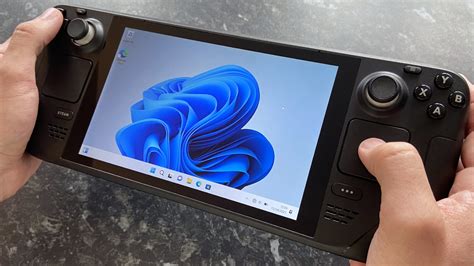
EXTERIORVIBE.BIZ.ID – The Steam Deck, Valve’s innovative portable gaming PC, primarily runs on SteamOS, a Linux-based operating system. While SteamOS is optimized for Steam games and provides a seamless experience, many users desire to install Windows on their Steam Deck to unlock broader compatibility and access a wider range of software.
This comprehensive guide explores the reasons, considerations, and an overview of the process for installing Windows on your Steam Deck, turning your handheld into an even more versatile device.
Why Install Windows on Your Steam Deck?
Running Windows significantly expands your game library beyond titles natively supported by SteamOS’s Proton compatibility layer. This includes exclusive games from other PC game launchers like Epic Games Store, Xbox Game Pass, and GOG, which may not function optimally or at all on Linux.
Beyond gaming, installing Windows provides access to a full desktop environment and essential Windows-specific applications. This transforms your Steam Deck into a highly capable mini-PC, perfect for productivity tasks or software that simply isn’t available on Linux.
Key Considerations Before Installation
Installing Windows requires careful planning regarding storage and driver availability. You’ll need adequate free space, potentially utilizing an external SD card, and must be prepared to manually install specific hardware drivers post-installation.
Performance can vary, as Windows is not natively optimized for the Steam Deck’s unique hardware and power profile. Expect some reduction in battery life and potential performance quirks compared to the finely tuned SteamOS experience.
Installation Process Overview
The general installation process involves downloading a Windows ISO file and creating a bootable USB drive from it. You will then boot your Steam Deck from this USB drive and follow the standard Windows installation steps, much like on any other PC.
Crucially, after Windows is installed, you must install specific Windows drivers for the Steam Deck’s hardware, including Wi-Fi, audio, Bluetooth, and GPU. Valve officially provides these essential drivers, which are vital for proper functionality.
Dual Booting vs. Windows Only
Many users opt for a dual-boot setup, which allows them to choose between SteamOS and Windows each time they power on their device. This approach offers the best of both worlds, leveraging SteamOS for optimized Steam gaming and Windows for broader compatibility.
While a Windows-only installation is feasible, it means completely forfeiting the SteamOS experience and its specific optimizations for Steam Deck hardware. Carefully consider your primary use cases before deciding on a single or dual operating system setup.
In conclusion, installing Windows on your Steam Deck is a powerful customization that significantly broadens its capabilities as a portable gaming and computing device. While it involves a technical setup and some trade-offs, the expanded game and application access can be incredibly rewarding for advanced users seeking maximum versatility from their handheld.
Written by: Michael Brown
