
Table of Contents
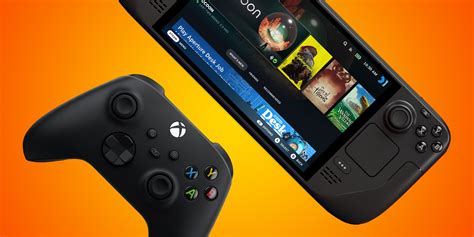
EXTERIORVIBE.BIZ.ID – Enhance your Steam Deck gaming experience by seamlessly connecting an Xbox controller. This comprehensive guide will walk you through the simple steps to achieve seamless, comfortable gameplay with your favorite external input device.
Many gamers prefer the familiar ergonomics and robust build quality of an Xbox controller. It offers a comfortable and precise alternative to the Steam Deck’s built-in controls for specific game genres, especially when playing docked.
Connecting via Bluetooth for Wireless Freedom
The primary method for wireless connectivity is Bluetooth, providing flexibility and allowing you to play untethered from your device. This process ensures a clean setup without extra cables.
Step-by-Step Bluetooth Pairing
First, ensure your Xbox controller has sufficient battery life and is ready for pairing mode. Press and hold the small pairing button on the top edge of the controller until the Xbox button starts flashing rapidly.
On your Steam Deck, navigate to the System Settings menu by pressing the Steam button and selecting ‘Settings’. From there, choose the ‘Bluetooth’ option to manage your wireless connections.
Make sure the Bluetooth toggle is switched ‘On’ so your Steam Deck can discover new devices. The device list should soon display ‘Xbox Wireless Controller’ as an available option for pairing.
Select the ‘Xbox Wireless Controller’ from the list to initiate the connection process. Once successfully paired, the Xbox button light on your controller will become solid, indicating a stable connection.
Wired Connection for Reliable Gameplay
For a latency-free experience, or if your controller’s battery is low, a wired connection is a straightforward alternative. This method often provides the most stable connection with minimal input delay.
Simply use a USB-C to USB-A cable (or USB-C to USB-C, depending on your controller model) to connect your Xbox controller directly to your Steam Deck. The Steam Deck will automatically recognize the controller upon connection, making it instantly ready for use.
Optimizing Your Gaming Experience
Once connected, whether wirelessly or wired, the Steam Deck automatically recognizes the Xbox controller and maps its inputs. You can further customize controller settings and button assignments within Steam Input for individual games, tailoring your setup for optimal performance.
Troubleshooting Common Connection Issues
If you encounter any problems during the connection process, try restarting both your Steam Deck and the Xbox controller. Additionally, ensure your controller’s firmware is up to date through the Xbox Accessories app on a PC, which can resolve many compatibility issues.
Integrating an Xbox controller with your Steam Deck significantly expands your gaming possibilities and comfort. Enjoy a more versatile and comfortable gaming experience, whether you’re playing at home on a larger display or handheld.
Frequently Asked Questions (FAQ)
How do I pair an Xbox controller with my Steam Deck via Bluetooth?
To pair your Xbox controller, first put it into pairing mode by holding the small button on top until the Xbox logo flashes. Then, on your Steam Deck, go to Settings > Bluetooth, ensure Bluetooth is on, and select ‘Xbox Wireless Controller’ from the available devices to connect.
Can I use an Xbox controller wired with the Steam Deck?
Yes, you can easily use an Xbox controller wired with your Steam Deck. Simply connect the controller to the Steam Deck using a compatible USB-C cable, and the device will automatically recognize it for immediate play.
What are the benefits of using an Xbox controller on Steam Deck?
Using an Xbox controller offers enhanced comfort, familiarity, and precision, especially for games that benefit from traditional gamepad layouts. It’s ideal for extended play sessions and when playing your Steam Deck docked to a TV.
How do I troubleshoot connection issues with my Xbox controller and Steam Deck?
If you experience connection problems, try restarting both your Steam Deck and the Xbox controller. Also, ensure your Xbox controller’s firmware is up-to-date using the Xbox Accessories app on a PC, as outdated firmware can sometimes cause compatibility issues.
Written by: David Thomas
