
Table of Contents
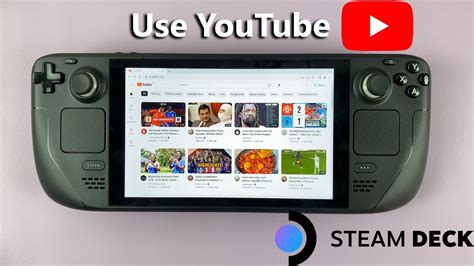
EXTERIORVIBE.BIZ.ID – The Steam Deck stands out as a remarkably versatile handheld PC, offering an excellent platform for gaming on the go. Beyond its gaming prowess, many users wonder how to seamlessly integrate their favorite music streaming services like YouTube Music into their Steam Deck experience.
This guide will walk you through various methods to enjoy your YouTube Music playlists, whether you’re actively gaming or simply relaxing with your device. Integrating music can significantly enhance your overall handheld experience.
Accessing YouTube Music via Web Browser
The simplest and most direct method to access YouTube Music on your Steam Deck involves utilizing its Desktop Mode. Here, you can launch a standard web browser, such as Firefox or Google Chrome, and navigate directly to the YouTube Music website.
This approach provides immediate access to your entire music library and personalized playlists without requiring any complex installations. However, it means you’ll need to switch out of Gaming Mode to control playback or browse different tracks, which isn’t ideal during gameplay.
Integrating YouTube Music as a Non-Steam Game
For a more integrated experience directly within Gaming Mode, you can add your web browser with the YouTube Music site as a non-Steam game. This clever trick allows you to launch YouTube Music straight from your familiar game library interface.
To set this up, boot into Desktop Mode, open your preferred browser to YouTube Music, then use the Steam client to ‘Add a Non-Steam Game to My Library’. You can even customize the shortcut’s artwork to make it feel like a native application within your Steam library.
Utilizing Third-Party YouTube Music Clients
More adventurous users might explore third-party applications specifically designed for Linux, which can offer deeper integration and dedicated features. The Discover Software Center, accessible in Desktop Mode, is the primary hub for finding and installing these types of applications.
Options like FreeTube, a privacy-focused YouTube client, or even dedicated web app wrappers can provide a smoother, more app-like experience for YouTube Music. Always exercise caution and verify the source when installing any third-party software to ensure security and stability on your device.
Optimizing Your Audio Experience
To fully immerse yourself in your YouTube Music on the Steam Deck, consider pairing high-quality Bluetooth headphones or earbuds. This eliminates the need for physical cables and provides a more private, immersive listening experience, especially while gaming.
It’s important to remember that running background applications like a music streamer will consume system resources and battery life. Adjusting audio quality settings or closing background games when not needed can help balance performance and enjoyment.
Conclusion: Enjoying Your Tunes
Enjoying YouTube Music on your Steam Deck is entirely achievable, offering flexibility to suit various preferences and technical comfort levels. Whether you opt for the simplicity of a web browser or the deeper integration of a third-party client, your Steam Deck can become a portable entertainment powerhouse.
Experiment with these different methods to discover the setup that best complements your gaming habits and personal listening style. The Steam Deck truly empowers users to customize their experience, making it more than just a gaming machine.
Frequently Asked Questions (FAQ)
Can I use YouTube Music directly in Steam Deck’s Gaming Mode?
Yes, you can achieve this by adding your web browser, with the YouTube Music website open, as a non-Steam game shortcut. This allows you to launch it from your Steam library in Gaming Mode.
Is there an official YouTube Music app for the Steam Deck?
Currently, Valve does not offer a dedicated, official YouTube Music application specifically optimized for the Steam Deck. Users rely on web browsers or third-party Linux clients for access.
Does playing music in the background affect Steam Deck game performance?
Yes, running any application in the background, including a music streamer, will consume system resources like CPU, RAM, and battery life. This can potentially lead to a slight reduction in game performance or battery longevity.
What’s the best way to control YouTube Music while gaming on Steam Deck?
Using the web browser added as a non-Steam game allows you to switch between the game and the browser via the Steam button for controls. Some third-party Linux clients might offer better background control or shortcuts, depending on their features.
Written by: James Wilson
