
Table of Contents
EXTERIORVIBE.BIZ.ID – The Steam Deck offers incredible portable PC gaming, making many wonder if Xbox Play Anywhere titles can be enjoyed on it. While direct native installation isn’t straightforward on SteamOS, several clever methods allow you to play your Xbox games on this powerful handheld. This guide details these essential options for maximum flexibility.
Understanding Xbox Play Anywhere Compatibility
Xbox Play Anywhere is a Microsoft program: buy a digital game once, play it on both Xbox and Windows PC with shared saves and achievements. It fundamentally requires an Xbox console or a native Windows environment; Steam Deck’s Linux-based SteamOS does not natively support the Xbox application or Windows-exclusive games.
Method 1: Xbox Cloud Gaming (xCloud)
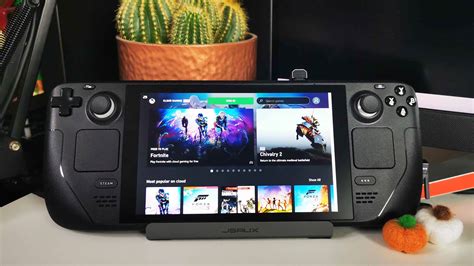
The simplest method is Xbox Cloud Gaming, included with an Xbox Game Pass Ultimate subscription. This service streams games directly from Microsoft’s servers to your Steam Deck over the internet. You only need a stable connection and Game Pass Ultimate, eliminating the need to own games or an Xbox console.
Setting Up xCloud
Install Microsoft Edge via Desktop Mode and add it to your Steam library. Configure specific launch options for full-screen and controller support, then launch Edge from Gaming Mode. Visit xbox.com/play, sign in, and access a vast library of streamed Xbox titles directly.
Method 2: Xbox Remote Play
Alternatively, Xbox Remote Play streams games directly from your own Xbox console (One or Series X|S) to your Steam Deck. Your console must be powered on or in Instant-On mode, accessible on the same network or remotely. This effectively transforms your Steam Deck into a portable screen for your home console.
Configuring Remote Play
Access Remote Play via a web browser like Microsoft Edge on your Steam Deck. Sign into your Microsoft account on the Xbox Remote Play website, ensuring your console is configured for remote features. You can then initiate a streaming session, playing any game on your Xbox with minimal latency on a strong local connection.
Method 3: Dual-Booting Windows
For the most native experience, dual-booting Windows on your Steam Deck is an advanced but highly effective solution. Install a full Windows version alongside SteamOS, either on the internal drive or an SD card. With Windows, you can then install the official Xbox application for complete Play Anywhere access.
While offering peak compatibility, this method is complex, impacting storage, and may require manual driver installations. However, it bypasses streaming limitations, providing true native execution for all Windows-compatible Xbox games. Choose this path if fidelity and direct access are top priorities.
Conclusion
Bringing Xbox Play Anywhere games to the Steam Deck is flexible and rewarding, with multiple avenues for portable play. Whether via convenient cloud streaming, direct console streaming, or a native Windows setup, the Steam Deck adapts to your gaming needs. Each method expands your on-the-go library, solidifying the Steam Deck’s versatile gaming status.
Frequently Asked Questions (FAQ)
Can I install the Xbox app directly on Steam Deck’s SteamOS?
No, the official Xbox app is designed for Windows and Xbox consoles, not SteamOS (Linux). You must use streaming methods like Cloud Gaming or Remote Play, or alternatively, dual-boot Windows on your Steam Deck for native app functionality.
Do I need Xbox Game Pass for Play Anywhere titles on Steam Deck?
You do not need Xbox Game Pass specifically for Play Anywhere titles you already own digitally. However, Xbox Cloud Gaming, a popular method for playing Xbox games on Steam Deck, *does* require an Xbox Game Pass Ultimate subscription.
What’s the best method for playing Xbox games on Steam Deck?
For ease and a vast library, Xbox Cloud Gaming is excellent with Game Pass Ultimate and good internet. For games you own on your console, Remote Play offers minimal latency, especially on a local network. For full native access and offline play, dual-booting Windows is ideal but requires more technical setup.
Does Xbox Play Anywhere include all Xbox games?
No, Xbox Play Anywhere only includes specific digital titles released by Microsoft or participating third-party publishers. Always check a game’s official store page for the ‘Xbox Play Anywhere’ badge to confirm its compatibility.
Is a good internet connection crucial for these methods?
Yes, a strong and stable internet connection is vital for both Xbox Cloud Gaming and Xbox Remote Play (especially for remote access outside your home network). While dual-booting Windows allows native game execution without constant internet, initial downloads and updates still require connectivity.
Written by: Michael Brown
