
Table of Contents
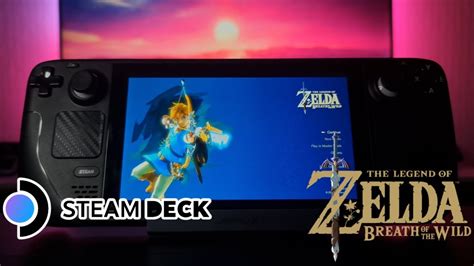
EXTERIORVIBE.BIZ.ID – The Steam Deck has revolutionized portable PC gaming, offering a powerful handheld experience for countless titles. Many enthusiasts dream of experiencing classic console games, like The Legend of Zelda: Breath of the Wild (BotW), on this versatile device.
Playing BotW on your Steam Deck is entirely achievable through emulation, bringing a beloved adventure into a new portable format. This guide will walk you through the essential steps and optimization tips for a smooth gaming journey.
Why Play Breath of the Wild on Steam Deck?
Bringing Breath of the Wild to the Steam Deck combines the game’s expansive open world with true handheld freedom. It allows you to revisit Hyrule anytime, anywhere, without being tethered to a console.
Beyond portability, emulation on the Steam Deck often provides opportunities for enhanced visuals and performance beyond the original console. You can experience higher resolutions, improved frame rates, and even custom graphic packs.
Essential Tools for Emulation
To embark on this adventure, you’ll need specific software to emulate the game’s original platform. The easiest way to manage this on the Steam Deck is by utilizing EmuDeck.
EmuDeck is a script that simplifies the installation and configuration of numerous emulators, including Cemu, which is primarily used for Wii U emulation and often preferred for BotW due to its maturity. It streamlines the entire setup process, making it much more user-friendly for Steam Deck owners.
Step-by-Step Setup Process
First, install EmuDeck on your Steam Deck by following its official instructions, typically involving downloading and running a script in Desktop Mode. Once EmuDeck is installed, you will select Cemu as one of the emulators to configure.
Next, you’ll need to legally obtain your Zelda BotW game files and the necessary Wii U firmware or ‘keys’ for Cemu. EmuDeck will guide you on where to place these files within your Steam Deck’s directory structure.
Finally, let EmuDeck scan for your game files and add them to your Steam library, making them easily launchable from Gaming Mode. Ensure you also download shader caches for BotW, as these are crucial for smooth gameplay and reducing stuttering.
Optimizing Performance for Zelda BotW
Achieving optimal performance for Zelda BotW on Steam Deck involves tweaking both emulator settings and Steam Deck’s system settings. Within Cemu, you can adjust resolution scaling and enable graphic packs like FPS++ to target 60 frames per second.
Many community-made graphic packs exist that can enhance visual fidelity or address specific performance issues; experiment to find what works best for your preferences. Additionally, managing the Steam Deck’s Thermal Design Power (TDP) limit and GPU clock speed can balance performance with battery life, offering a tailored experience.
Common Challenges and Troubleshooting
One common challenge is shader compilation stutter, which occurs when new game effects are rendered for the first time. Using a pre-compiled shader cache significantly reduces this issue. Another potential hurdle is controller mapping, though EmuDeck usually handles this seamlessly for the Steam Deck’s native controls.
Conclusion
Playing Zelda: Breath of the Wild on Steam Deck is a fantastic way to experience this acclaimed title with enhanced portability and customization. While it requires a bit of initial setup, the rewarding experience of exploring Hyrule on Valve’s handheld is well worth the effort.
By following these steps and optimizing your settings, you can enjoy a beautifully rendered and smooth adventure with Link, right in the palm of your hand.
Frequently Asked Questions (FAQ)
Is it legal to play Zelda BotW on Steam Deck through emulation?
Emulation itself is legal, but the legality of obtaining game ROMs and copyrighted firmware/BIOS files can be complex. Generally, it is legal to emulate games you already own, provided you extract the game files from your original cartridge or console. Sharing or downloading copyrighted game ROMs you don’t own is illegal in most regions.
Which emulator is best for Breath of the Wild on Steam Deck?
For Breath of the Wild, the Cemu emulator is generally recommended and often preferred on the Steam Deck. Cemu is a Wii U emulator and BotW originated on the Wii U, leading to very mature and optimized emulation. While Switch emulators (Yuzu/Ryujinx) can also run it, Cemu often offers a smoother experience with fewer graphical glitches for this specific title.
How can I improve BotW performance on Steam Deck?
To improve performance, ensure you have a complete shader cache installed for Cemu. Use graphic packs like ‘FPS++’ to target higher frame rates and experiment with resolution scaling. Additionally, within the Steam Deck’s Quick Access Menu, you can adjust the TDP (Thermal Design Power) limit and GPU clock speed to find a balance between performance and battery life.
Can I use mods for Zelda BotW on Steam Deck?
Yes, you can use mods for Breath of the Wild when playing it via emulation on the Steam Deck. Cemu supports various graphic packs and community mods, which can be easily managed within the emulator’s settings. EmuDeck also helps streamline the process of adding and configuring these enhancements.
What is EmuDeck and why is it important for playing BotW on Steam Deck?
EmuDeck is a script that automates and simplifies the setup of numerous emulators on the Steam Deck, including Cemu for Wii U games like BotW. It installs emulators, configures controller mappings, and organizes game ROMs, significantly reducing the complexity of getting emulated games running. It creates a seamless experience by integrating everything into your Steam library.
Written by: David Thomas
