
Table of Contents
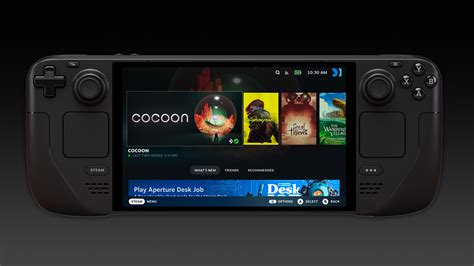
EXTERIORVIBE.BIZ.ID – The Steam Deck OLED introduces a significant upgrade for handheld gaming enthusiasts with its vibrant 90Hz display. This higher refresh rate promises a noticeably smoother and more immersive visual experience compared to the traditional 60Hz screens.
Understanding how to leverage 90Hz and its implications for performance and battery life is key to maximizing your gaming sessions on this powerful portable device.
What is 90Hz and Why Does It Matter?
Refresh rate refers to how many times your screen updates its image per second, measured in Hertz (Hz). A 90Hz display updates 90 times every second, offering 50% more visual information than a standard 60Hz screen.
This increased fluidity is particularly noticeable in fast-paced games, making motion appear more natural and responsive, potentially enhancing your gameplay experience.
Steam Deck OLED’s 90Hz Advantage
The Steam Deck OLED is uniquely equipped with a native 90Hz display, a feature absent in the original LCD model. This allows for a smoother visual output when games can achieve frame rates close to or at 90 frames per second (FPS).
The improved display also boasts better contrast and color accuracy, further elevating the overall visual quality.
Enabling 90Hz on Your Steam Deck OLED
Activating 90Hz on your Steam Deck OLED is a straightforward process embedded within SteamOS settings. This adjustment can be made on a global level or customized per game for optimal flexibility.
You can navigate to the display settings within the quick access menu to select your desired refresh rate, including the 90Hz option.
Adjusting Display Settings
To enable 90Hz, press the Steam button, go to Settings, then Display, and you will find the refresh rate option. Here you can choose between 60Hz and 90Hz for the system UI and games.
For individual games, you can use the Performance Overlay in the Quick Access Menu (the “…” button) to set a specific refresh rate and frame rate limit for that title.
Optimizing for 90Hz: Performance vs. Battery
While 90Hz offers superior visuals, it naturally demands more processing power and energy from your device. Running games at higher frame rates to match the 90Hz refresh rate will consume battery faster.
Players must often find a balance between visual fidelity, smooth performance, and desired battery longevity, depending on the game and their personal preferences.
Performance Considerations and Trade-offs
Achieving a stable 90 FPS in demanding titles might require lowering in-game graphical settings or utilizing upscaling technologies like FSR (FidelityFX Super Resolution). Many graphically intensive games may struggle to consistently hit 90 FPS, making the 90Hz setting less impactful if the frame rate dips significantly.
Conversely, less demanding indie games or older titles can often run at a stable 90 FPS without significant compromises, fully showcasing the benefits of the higher refresh rate.
Tips for Maximizing the 90Hz Experience
Experiment with in-game settings, adjusting resolutions and detail levels to find the sweet spot for a stable 90 FPS. Consider using the built-in FSR feature in SteamOS to boost frame rates without a drastic drop in visual quality.
For games where 90 FPS is unattainable, setting the refresh rate to 60Hz or even a custom lower rate can save battery and ensure a more consistent frame rate, avoiding choppy gameplay.
Ultimately, the 90Hz display on the Steam Deck OLED offers a fantastic opportunity for a more fluid and engaging gaming experience. By understanding its capabilities and making smart adjustments, you can unlock its full potential for a truly enhanced handheld adventure.
Written by: Emma Johnson
