
Table of Contents
EXTERIORVIBE.BIZ.ID – The Steam Deck offers unparalleled portable PC gaming, but its versatility extends far beyond handheld play. Understanding **Steam Deck docking** allows you to transform your portable device into a powerful mini-PC or a home console, greatly enhancing your gaming and productivity options.
Docking essentially connects your Steam Deck to an external display, such as a TV or monitor, along with various peripherals like a keyboard, mouse, or external controller. This setup provides a more traditional desktop or big-screen gaming experience, leveraging the Deck’s hardware in a different form factor.
Why Dock Your Steam Deck?
Docking opens up a world of possibilities, making your Steam Deck much more than just a handheld. You can enjoy your favorite games on a larger screen, immersing yourself fully in the action with improved visuals and sound.
Beyond gaming, docking enables the Steam Deck’s desktop mode, turning it into a capable Linux-based computer for web browsing, office tasks, or even light content creation. This flexibility adds significant value, making the device suitable for a wider range of activities.
Choosing the Right Docking Station
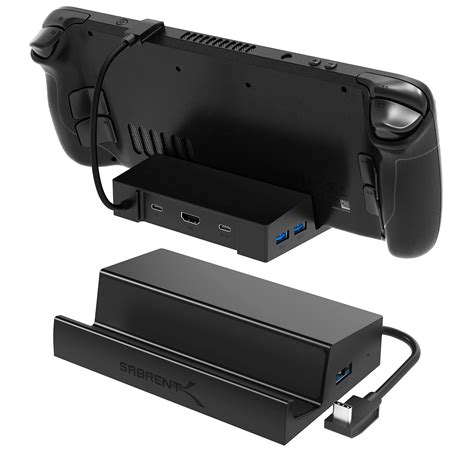
To begin **Steam Deck docking**, you’ll need a compatible docking station. Valve offers an official Steam Deck Dock, designed specifically for the device, providing seamless integration and optimal performance.
Many reliable third-party USB-C hubs and docking stations are also available, often offering a wider variety of ports and features at different price points. When selecting a dock, look for essential ports like HDMI or DisplayPort for video output, USB-A for peripherals, and critically, USB-C Power Delivery (PD) to charge your Deck while docked.
Setting Up Your Docked Experience
Once you have your docking station, the setup process is straightforward. First, connect the dock to your Steam Deck via its USB-C port, then plug your external display into the dock’s HDMI or DisplayPort output.
Finally, connect your power adapter to the dock’s power input, and plug in any desired peripherals like a wired controller, keyboard, or mouse into the available USB-A ports. The Steam Deck should automatically detect the external display and switch its video output, allowing you to enjoy your games or use desktop mode on a much larger canvas.
Optimizing Peripherals and Settings
For an optimal docked gaming experience, a good external controller is often preferred over the Steam Deck’s built-in controls. Wireless controllers like Xbox, PlayStation, or other Bluetooth gamepads pair easily with the device.
In desktop mode, a keyboard and mouse are indispensable for navigation and productivity tasks, mimicking a traditional PC setup. You can also adjust display settings directly from the Steam Deck’s settings menu to fine-tune resolution and refresh rates for your external monitor, ensuring the best possible visual quality.
Written by: David Thomas
