
Table of Contents
EXTERIORVIBE.BIZ.ID – The Steam Deck is a powerful portable gaming PC, offering an excellent handheld experience for your favorite titles. However, its versatility extends beyond mobile play, allowing you to connect it to an external display for an even more immersive gaming session.
Connecting your Steam Deck via HDMI transforms your small screen into a large-format entertainment hub, perfect for sharing games or enjoying a desktop-like environment. This guide will walk you through everything you need to know about using HDMI with your Steam Deck.
Why Connect Your Steam Deck to HDMI?
Extending your Steam Deck’s display to an external monitor or TV offers numerous advantages over the built-in screen. A larger display provides a more expansive view of your games, enhancing visual details and making action sequences more impactful.
This setup is ideal for local multiplayer games, allowing multiple players to gather around a single screen for cooperative or competitive fun. It also provides a more ergonomic solution for long gaming sessions, reducing eye strain and improving comfort.
Essential Equipment for HDMI Output
To connect your Steam Deck to an external display, you will primarily need a few key items. First, a reliable HDMI cable is crucial for transmitting both video and audio signals efficiently.
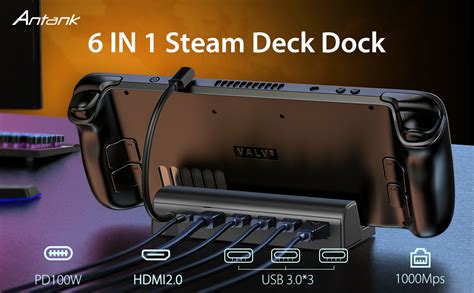
Second, you’ll need either a USB-C to HDMI adapter or a dedicated Steam Deck docking station. While an adapter is a simple solution for video output, a docking station often provides additional ports for accessories, Ethernet, and power delivery, making it a more comprehensive solution.
Step-by-Step Connection Guide
Connecting your Steam Deck via HDMI is a straightforward process that takes just a few moments. Begin by plugging your USB-C adapter or docking station into the Steam Deck’s top-mounted USB-C port.
Next, connect one end of your HDMI cable to the adapter/dock and the other end to an available HDMI input on your external monitor or TV. Finally, ensure your external display is powered on and set to the correct HDMI input source to view the Steam Deck’s output.
Optimizing Your Display Settings
Once connected, your Steam Deck should automatically detect the external display, but you might want to adjust some settings for optimal performance. Navigate to the Display settings within your Steam Deck’s System menu to configure resolution and refresh rate.
You can choose to mirror your Steam Deck’s display or extend it, providing more desktop real estate if desired. Remember that higher resolutions or refresh rates might impact performance on more demanding games, so find a balance that suits your setup.
Common Issues and Troubleshooting with Steam Deck HDMI
Sometimes, you might encounter issues when trying to connect your Steam Deck to an external display. If you’re not getting a signal, first try restarting both your Steam Deck and the external monitor, ensuring all cables are securely connected.
Resolution problems can often be fixed by manually selecting a compatible resolution in the Steam Deck’s Display settings or by updating your adapter/dock firmware. For audio issues, check that the correct audio output device is selected in the Steam Deck’s sound settings.
Connecting your Steam Deck to an external display via HDMI significantly enhances its utility and versatility. With the right equipment and a few simple steps, you can easily transition from portable gaming to a full-fledged big-screen experience.
Embrace the flexibility that HDMI connectivity offers, whether for immersive single-player adventures or engaging multiplayer sessions with friends and family.
Written by: Emily Taylor
