
Table of Contents
EXTERIORVIBE.BIZ.ID – (Contextual Note: Valve officially announced the full schedule for all official sales and game festivals (themed events) on its PC gaming platform Steam in 2026 on January 16th, covering the four major seasonal sales throughout the year, multiple themed festivals, and the highly anticipated Steam New…)
Hogwarts Legacy offers an immersive wizarding world experience, but running this graphically demanding title smoothly on a portable device like the Steam Deck requires careful optimization. This guide will help you fine-tune your settings to achieve a balanced performance, ensuring a magical journey without excessive frame drops.
Understanding Hogwarts Legacy’s Performance Demands
Hogwarts Legacy is a visually rich open-world game, pushing even dedicated gaming PCs. Its extensive environments, detailed character models, and complex spell effects can strain the Steam Deck’s hardware, necessitating thoughtful adjustments for a playable experience.
The goal isn’t to hit 60 frames per second (FPS) consistently, which is largely unattainable for this title on the Steam Deck, but rather to maintain a stable 30 FPS. This framerate provides a smooth and consistent gameplay feel without major stutters, which is crucial for immersion.
Essential In-Game Graphics Settings
Resolution and Upscaling
Start by setting the in-game resolution to the Steam Deck’s native 1280×800, then enable AMD FSR 2.0 (FidelityFX Super Resolution) to either “Balanced” or “Performance.” FSR intelligently upscales a lower-rendered image, significantly boosting performance while retaining acceptable visual quality.
This technique allows the GPU to process fewer pixels, thereby freeing up resources for other demanding graphical elements. Experiment with both FSR modes to see which offers the best balance for your visual preference.
Key Visual Quality Adjustments
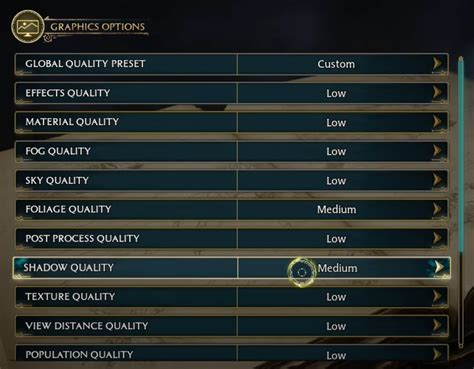
For most graphics settings, targeting a “Medium” preset is a good starting point, with some specific reductions for better stability. Lowering settings like shadows, foliage quality, and view distance can provide substantial FPS gains without severely impacting the core visual experience.
Specifically, set “Shadow Quality” and “Foliage Quality” to Medium or Low, and consider reducing “View Distance Quality” to Medium. Additionally, disable “Depth of Field” and “Motion Blur” as these often consume resources and can sometimes detract from clarity on a smaller screen.
Steam Deck System-Level Optimizations
Beyond in-game settings, the Steam Deck’s operating system (SteamOS) offers powerful tools for further optimization. Accessing the Quick Access Menu (the ‘…’ button) reveals various performance overlays and sliders.
Set a manual Frame Limit of 30 FPS to ensure consistency and prevent unnecessary GPU exertion, which also helps conserve battery life. Adjust the refresh rate to 60Hz and consider a modest TDP (Thermal Design Power) Limit, starting around 10-12W, to manage heat and battery consumption effectively.
Ensure you are using the latest recommended Proton version for Hogwarts Legacy, usually Proton GE, as these community-driven versions often include game-specific performance improvements. Regularly check for updates to both SteamOS and Proton to benefit from ongoing optimizations.
Balancing Visuals and Performance
Finding the perfect settings for Hogwarts Legacy on your Steam Deck is often a matter of personal preference and experimentation. Start with the recommended settings, then gradually increase or decrease individual options to find your ideal balance of visual fidelity and stable performance.
The goal is to achieve a consistent 30 FPS without noticeable stuttering, allowing you to fully immerse yourself in the magical world. With these adjustments, your Steam Deck can deliver a highly enjoyable and portable Hogwarts Legacy adventure.
Frequently Asked Questions (FAQ)
Can Hogwarts Legacy run at 60 FPS on the Steam Deck?
Achieving a consistent 60 FPS in Hogwarts Legacy on the Steam Deck is generally not feasible due to the game’s high graphical demands. Most players aim for a stable 30 FPS for a smooth and enjoyable experience.
What is FSR and why is it important for Hogwarts Legacy on Steam Deck?
FSR stands for AMD FidelityFX Super Resolution, an upscaling technology. It renders the game at a lower resolution and then intelligently reconstructs it to the Steam Deck’s native resolution, significantly boosting performance without a drastic loss in visual quality. It’s crucial for making demanding games like Hogwarts Legacy playable.
Which specific in-game settings should I prioritize lowering for better performance?
Prioritize lowering ‘Shadow Quality’, ‘Foliage Quality’, and ‘View Distance Quality’ to Medium or Low. Additionally, consider disabling ‘Depth of Field’ and ‘Motion Blur’ as these settings often consume significant resources on the Steam Deck.
Should I use SteamOS performance tools like TDP limits?
Yes, utilizing SteamOS performance tools like setting a manual Frame Limit to 30 FPS and adjusting the TDP (Thermal Design Power) limit (e.g., to 10-12W) can greatly improve stability, manage heat, and extend battery life while playing Hogwarts Legacy.
Written by: Olivia Anderson
