
Table of Contents
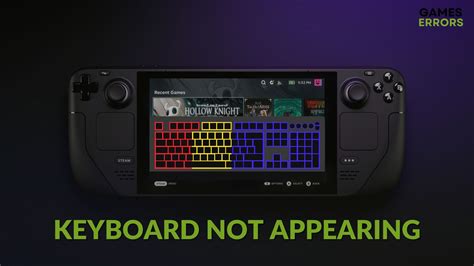
EXTERIORVIBE.BIZ.ID – Encountering a disappearing keyboard on your Steam Deck can be a frustrating experience, especially when you need to input text or navigate game menus. This common issue prevents users from typing, effectively hindering various functionalities of the handheld console. Understanding the potential causes and solutions can quickly get you back to your gaming.
The Steam Deck’s virtual keyboard is crucial for its user interface, appearing automatically when text input is required. However, various software glitches or input conflicts can prevent it from displaying correctly. Addressing these underlying problems is key to restoring full functionality.
Common Causes for a Missing Steam Deck Keyboard
Several factors can contribute to the Steam Deck’s virtual keyboard failing to appear. Sometimes, it’s as simple as a temporary software bug or an overlooked system setting. Identifying the root cause is the first step toward a successful resolution.
Potential culprits include system freezes, conflicts with external controllers, or even outdated software. Occasionally, certain game overlays or applications might interfere with the keyboard’s automatic pop-up mechanism. Pinpointing the exact reason helps in applying the most effective troubleshooting steps.
Quick Fixes & Troubleshooting Steps
When your Steam Deck keyboard won’t show up, a series of simple troubleshooting steps can often resolve the problem. These solutions range from basic system restarts to checking specific settings within SteamOS. Don’t worry, most fixes are straightforward and require no advanced technical knowledge.
Restarting Your Steam Deck
One of the most effective and often overlooked solutions for many tech glitches is a simple restart. Power cycling your Steam Deck can clear temporary software bugs and refresh system processes. Hold down the power button until the system fully shuts down, then power it back on.
A fresh boot can often resolve minor software conflicts that prevent the keyboard from appearing. This should always be your first course of action when experiencing unexpected behavior. Ensure the restart is a full power cycle, not just sleep mode.
Manually Summoning the Keyboard
The Steam Deck has a dedicated hotkey combination to force the keyboard to appear. Press the Steam button + X simultaneously to manually bring up the virtual keyboard. This is incredibly useful if the keyboard isn’t popping up automatically when it should.
This shortcut provides an immediate way to access the keyboard, bypassing any automatic detection failures. Remember this combination as it’s a handy tool for quick text entry anytime you need it. It works across most SteamOS interfaces and games.
Checking Controller Input & Layout
Sometimes, input settings or controller layouts can inadvertently interfere with keyboard display. Ensure that no other connected devices are conflicting with the Steam Deck’s native input. Temporarily disconnecting any external controllers might help.
Reviewing your controller settings in SteamOS can confirm that no unusual configurations are preventing the keyboard from appearing. Make sure the default Steam Deck input mapping is active, especially in game mode. Custom profiles sometimes cause unexpected interactions.
Verifying System Software
Outdated or corrupted SteamOS software can lead to various system malfunctions, including keyboard issues. Always ensure your Steam Deck is running the latest system updates. Navigate to System Settings to check for and apply any pending updates.
Regular software updates bring performance improvements and bug fixes that can address common problems like a missing keyboard. Keeping your system current is a good practice for overall device health and stability. A clean OS is a happy OS.
If these steps don’t resolve the issue, consider reaching out to Steam Support for further assistance. While most keyboard issues are easily fixable, persistent problems might indicate a deeper software glitch or hardware fault. They can provide specialized guidance and support.
Written by: David Thomas
