
Table of Contents
EXTERIORVIBE.BIZ.ID – Encountering an issue where your Steam Deck isn’t recognizing its SD card can be incredibly frustrating for any gamer. This common problem prevents access to stored games and can halt your portable gaming experience entirely.
Fortunately, many instances of the Steam Deck not reading an SD card can be resolved with straightforward troubleshooting steps. Understanding the potential causes, from simple glitches to formatting errors, is the first step toward a solution.
Common Reasons for SD Card Detection Failure
Several factors can lead to your Steam Deck failing to detect an SD card. Sometimes, it’s as simple as an improperly seated card or minor software hiccup.
Other times, the issue might stem from the SD card’s formatting, physical damage to the card or slot, or even a software bug within the Steam Deck’s operating system.
Initial Checks and Quick Fixes
Before diving into more complex solutions, always start with the easiest fixes. Begin by completely shutting down your Steam Deck and then carefully re-inserting the SD card into its slot.
Ensure the card is fully seated and click-locked into place before powering your device back on. A simple restart can often clear temporary software issues preventing detection.
Verifying SD Card Integrity and Compatibility
If re-insertion doesn’t work, test the SD card in another device, like a PC or laptop, to confirm if the card itself is functional. If it’s not read elsewhere, the SD card might be corrupted or faulty.
The Steam Deck primarily supports SD cards formatted as ext4, though it can reformat FAT32 cards. Ensure your SD card is not physically damaged and meets the Steam Deck’s compatibility requirements.
Advanced Troubleshooting: Formatting and System Checks
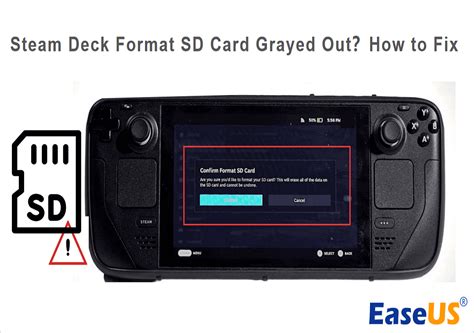
If the SD card works on another device, the problem likely lies with your Steam Deck. Navigate to the Steam Deck’s settings and look for the ‘System’ menu, then ‘Format SD Card’ option.
This action will erase all data on the card but can resolve formatting conflicts that prevent detection. Additionally, ensure your Steam Deck’s operating system is fully updated, as outdated software can sometimes cause compatibility issues.
Hardware Inspection and Seeking Support
Carefully inspect the Steam Deck’s SD card slot for any visible debris or physical damage. Using a flashlight, you might spot bent pins or obstructions that prevent proper contact.
If you’ve exhausted all software and basic hardware checks without success, it might indicate a deeper hardware problem. In such cases, contacting Valve Support for further assistance or a potential repair is the recommended next step.
Conclusion
A non-reading SD card on your Steam Deck can be a frustrating hurdle, but it’s often a fixable issue. By systematically working through these troubleshooting steps, you can usually restore full functionality to your device.
Remember to back up any important data before attempting a reformat and always reach out to official support if the problem persists after comprehensive self-troubleshooting.
Frequently Asked Questions (FAQ)
What SD card formats does the Steam Deck support?
The Steam Deck natively supports SD cards formatted with the ext4 filesystem. While it can also detect and prompt to reformat FAT32 cards, ext4 is the preferred and most efficient format for optimal performance and integration with SteamOS.
How do I reformat an SD card on my Steam Deck?
To reformat an SD card, insert it into your Steam Deck, then navigate to the ‘Settings’ menu. Select ‘System’ and scroll down to find the ‘Format SD Card’ option. Confirm this action to erase all data and reformat the card for use with your Steam Deck.
My Steam Deck isn’t detecting any SD card, what should I do?
If no SD card is detected, first try restarting your Steam Deck. Then, inspect the SD card slot for any physical damage or debris. Ensure your SteamOS is updated. If the issue persists with multiple tested SD cards, contact Valve Support, as it may indicate a hardware fault with the card reader itself.
Can I use an SD card from my Android phone or camera directly in the Steam Deck?
While you can insert such an SD card, it will likely be formatted in FAT32 or exFAT, which the Steam Deck will offer to reformat to ext4. This process will erase all existing data on the card, so back up any important files before using it in your Steam Deck.
Written by: Michael Brown
