
Table of Contents
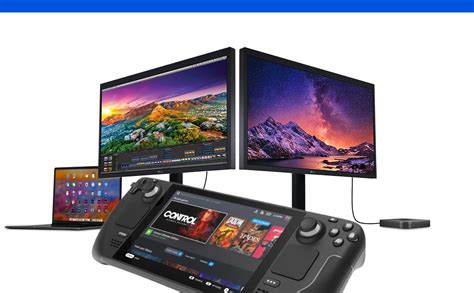
EXTERIORVIBE.BIZ.ID – Transforming your Steam Deck from a handheld device into a full-fledged desktop gaming experience is simpler than you might think. Connecting your Steam Deck to an external monitor unlocks a new level of immersion and comfort for your gaming sessions.
This guide will walk you through everything you need to know, from essential equipment to step-by-step setup, ensuring you can enjoy your favorite PC games on a larger screen with ease.
Why Connect Your Steam Deck to an External Display?
Connecting your Steam Deck to a monitor dramatically enhances your gaming by providing a larger, more comfortable viewing area. This setup is perfect for enjoying graphically intensive games or for longer playtimes where holding the device might become fatiguing.
It also enables local multiplayer experiences, allowing you and friends to gather around a big screen, just like with a traditional console, fostering a more social gaming environment.
Essential Equipment for Monitor Connectivity
To successfully connect your Steam Deck to an external monitor, you will need a few key components. The primary piece of hardware is a USB-C docking station or a compatible USB-C hub.
While a simple USB-C to HDMI adapter can work, a docking station is highly recommended as it typically provides power delivery, multiple USB ports for peripherals, and stable video output, streamlining your setup significantly.
Required Hardware Checklist:
- Steam Deck: Your portable gaming PC.
- External Monitor/TV: The display you wish to use.
- USB-C Docking Station or Hub: Essential for video output and connecting peripherals.
- HDMI or DisplayPort Cable: To connect the dock/hub to your monitor.
- Steam Deck Power Adapter: To power both the Steam Deck and the dock, ensuring stable performance.
- Optional Peripherals: External keyboard, mouse, or game controller for an enhanced experience.
Step-by-Step Connection Process
Connecting your Steam Deck to an external monitor is a straightforward process that takes just a few moments. Always ensure your Steam Deck is sufficiently charged or connected to power before beginning the setup.
Start by physically connecting all your components in the correct order to avoid any display issues.
Setting Up Your Display:
- Connect the Dock/Hub: Plug your USB-C docking station or hub firmly into the USB-C port at the top of your Steam Deck. Ensure it’s fully seated to establish a reliable connection.
- Connect the Monitor: Use your HDMI or DisplayPort cable to connect the video output port on your docking station/hub to the corresponding input port on your external monitor or TV. Double-check that the cable is securely fastened at both ends.
- Connect Power: Plug the Steam Deck’s official power adapter into the power delivery (PD) port on your docking station or hub. This is crucial for powering both the dock and the Steam Deck, preventing battery drain and potential performance dips.
- Power On: Turn on your external monitor and select the correct input source (e.g., HDMI 1, DisplayPort) using the monitor’s menu. Then, power on your Steam Deck if it isn’t already running.
- Adjust Display Settings: Your Steam Deck should automatically detect the external display. If not, navigate to `Settings > Display` on your Steam Deck to configure resolution, refresh rate, and display orientation as needed.
Optimizing Your Extended Display Experience
Once connected, you can switch between Gaming Mode and Desktop Mode on your Steam Deck to suit your activity. Gaming Mode is ideal for a console-like experience with controllers, while Desktop Mode offers a traditional PC environment for productivity tasks.
Consider using an external controller for a more traditional gaming setup, or connect a keyboard and mouse for strategy games and general web browsing in Desktop Mode, enhancing overall usability.
Troubleshooting Common Connectivity Issues
Sometimes, you might encounter minor hiccups when connecting your Steam Deck to a monitor. A common issue is the display not being detected or showing a blank screen, which often relates to cable connections or input selection.
Always ensure all cables are securely plugged in and try restarting both your Steam Deck and the monitor; sometimes a simple reboot resolves connectivity glitches.
If the resolution looks incorrect, check your Steam Deck’s display settings under `Settings > Display` and manually select the native resolution of your monitor. Firmware updates for your dock or Steam Deck can also resolve compatibility problems, so keep everything updated for optimal performance.
By following these steps, you can seamlessly integrate your Steam Deck into a larger display setup, unlocking new ways to enjoy your extensive Steam library. This flexibility transforms the portable console into a versatile gaming powerhouse for both on-the-go and home entertainment.
Frequently Asked Questions (FAQ)
Do I need a specific docking station for the Steam Deck?
While Valve offers an official Steam Deck Dock, many third-party USB-C hubs and docking stations are compatible. Look for docks that support USB-C Power Delivery (PD) and video output (HDMI/DisplayPort) for the best experience.
Can I use any USB-C to HDMI adapter?
A simple USB-C to HDMI adapter might work for video, but it won’t provide power delivery or additional USB ports. A dedicated docking station or a hub with PD is recommended to charge your Steam Deck simultaneously and connect peripherals.
What resolutions and refresh rates does the Steam Deck support on an external monitor?
The Steam Deck can output up to 4K resolution at 60Hz or 1440p at 120Hz, depending on the game’s performance and the capabilities of your monitor and dock. Always check your monitor’s specifications.
Does connecting to a monitor improve the Steam Deck’s performance?
Connecting to an external monitor does not inherently boost the Steam Deck’s processing power. However, running games at lower resolutions (e.g., 1080p instead of 4K) on a larger screen can sometimes provide a smoother experience than trying to push higher resolutions on the internal display, depending on the game.
Can I play games with a keyboard and mouse when connected to a monitor?
Absolutely! When connected to an external display, you can plug in a USB keyboard and mouse to your docking station or use Bluetooth peripherals. This transforms your Steam Deck into a more traditional PC gaming setup, especially useful in Desktop Mode.
Written by: Michael Brown
