
Table of Contents
EXTERIORVIBE.BIZ.ID – The Steam Deck, Valve’s popular handheld gaming PC, offers an incredible portable gaming experience; however, its base storage capacity can often feel limiting for a growing game library. Upgrading your Steam Deck’s internal SSD (Solid State Drive) is a fantastic way to expand storage and potentially improve game loading times. This guide will walk you through the essential steps and considerations for a successful Steam Deck SSD upgrade.
Why Consider a Steam Deck SSD Upgrade?
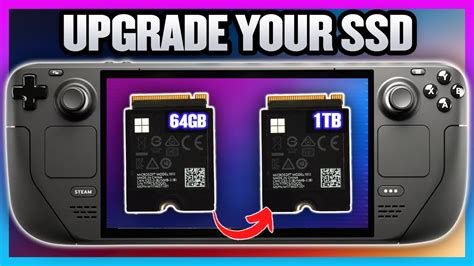
Many Steam Deck models come with 64GB or 256GB of internal storage, which can quickly fill up with modern game titles. A larger SSD allows you to install more games directly onto the device, reducing reliance on slower microSD cards. This upgrade can significantly enhance your gaming experience, especially for demanding titles.
While microSD cards offer convenient storage expansion, they generally don’t match the speed of an internal NVMe SSD. Upgrading your internal drive means faster load times for games and snappier overall system performance. It’s an investment that ensures your Steam Deck remains a powerful and versatile gaming machine for years to come.
Choosing the Right SSD for Your Steam Deck
The most critical factor for a Steam Deck SSD upgrade is selecting the correct form factor. The Steam Deck specifically uses a M.2 2230 NVMe SSD, which is physically much smaller than standard M.2 drives found in most PCs. It’s crucial to purchase this specific size to ensure compatibility and proper fit within the device.
Common capacities for upgrading range from 512GB to 2TB, with 1TB often striking a good balance between cost and storage benefit. Always verify the seller’s reputation and product specifications to avoid counterfeit or incompatible drives. Remember, not all M.2 drives are 2230, so double-check before purchasing.
Essential Preparations Before You Begin
Before disassembling your Steam Deck, back up any important save files or personal data to a cloud service or external drive. It’s also highly recommended to fully charge your Steam Deck’s battery and then put it into Battery Storage Mode via the BIOS (UEFI) to prevent accidental power surges during the process. Gather necessary tools, which typically include a small Phillips head screwdriver, a plastic spudger tool for prying, and new thermal paste if you plan to replace the existing pad.
Another crucial step is to create a SteamOS recovery drive on a USB stick or microSD card using another PC. This will be essential for reinstalling the operating system onto your new SSD once it’s installed. Ensure you have all these items ready to minimize downtime and ensure a smooth upgrade experience.
The SSD Installation Process Simplified
The physical upgrade involves carefully opening the Steam Deck’s backplate, which requires removing several small screws and gently prying the plastic clips. Once inside, locate the internal battery connector and carefully disconnect it to ensure safety. The old M.2 2230 SSD is usually secured by a single screw; remove this, then slide out the old drive.
Insert your new M.2 2230 NVMe SSD into the slot, securing it with the same screw you removed. Reconnect the battery, carefully replace the backplate, and tighten all the screws. Take your time during this process, being mindful of delicate components and ensuring proper alignment of all parts. Once reassembled, your Steam Deck is ready for the software step.
Reinstalling SteamOS and Post-Upgrade Steps
With the new SSD physically installed, connect your SteamOS recovery drive to the Steam Deck. Boot the device while holding down the Volume Down button and the Power button simultaneously to enter the boot menu. Select your recovery drive from the list to start the SteamOS reinstallation process. Follow the on-screen prompts to wipe the new SSD and install a fresh copy of SteamOS.
Once SteamOS is reinstalled, you’ll need to sign back into your Steam account and begin redownloading your game library. Congratulations, your Steam Deck now boasts significantly more storage capacity, ready for countless hours of gaming. Enjoy your expanded digital world!
Frequently Asked Questions (FAQ)
Is it difficult to upgrade the Steam Deck SSD?
While it requires careful handling and specific tools, the process is generally considered manageable for those with some technical aptitude. Following a detailed guide and taking your time are key to a successful upgrade.
What type of SSD does the Steam Deck use?
The Steam Deck exclusively uses a M.2 2230 NVMe SSD. It’s crucial to ensure your replacement drive is this exact form factor (22mm wide, 30mm long) for proper fit and compatibility.
Will upgrading my Steam Deck SSD void the warranty?
Valve has indicated that users are free to open their Steam Deck. However, any damage caused during a self-repair or upgrade will likely not be covered by the warranty. Proceed with caution and at your own risk.
Do I need to reinstall SteamOS after upgrading the SSD?
Yes, absolutely. Since the operating system is stored on the internal SSD, replacing the drive means you will need to reinstall SteamOS from scratch using a recovery drive. This is an essential step after the physical installation.
Can I use an external SSD or a microSD card instead of upgrading the internal drive?
While you can use a microSD card for expanded storage, its performance (read/write speeds) is typically slower than an internal NVMe SSD. External SSDs can be connected via the USB-C port, but they’re not as seamless or portable as internal storage for games.
Written by: William Clark
