
Table of Contents
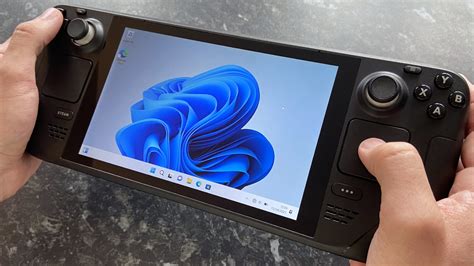
EXTERIORVIBE.BIZ.ID – The Steam Deck, Valve’s popular handheld gaming PC, primarily runs on SteamOS, a Linux-based operating system tailored for gaming. However, many users explore installing Windows OS on their Steam Deck to expand its capabilities beyond the default experience.
This guide explains why you might consider making this change, the benefits it offers, and the potential drawbacks you should be aware of before proceeding with installation.
Why Install Windows on Your Steam Deck?
Opting for Windows on your Steam Deck significantly broadens its game compatibility, allowing access to titles that may not run optimally or at all through SteamOS’s Proton compatibility layer. This includes games with aggressive anti-cheat systems or those exclusively designed for Windows environments.
Beyond gaming, Windows transforms the Steam Deck into a full-fledged portable PC, enabling you to install and use any Windows-compatible software, from productivity suites to various creative applications.
Understanding the Trade-offs
While installing Windows offers compelling advantages, it’s crucial to understand the associated trade-offs. The experience isn’t always seamless, and certain compromises must be made.
Advantages of Windows on Steam Deck
The primary benefit is unlocking a vast library of games and applications traditionally restricted to Windows PCs. This includes titles from other digital storefronts like Epic Games Store or GOG that don’t always integrate smoothly with SteamOS.
Furthermore, Windows provides a familiar desktop environment for many users, making tasks outside of gaming more intuitive and accessible on the go.
Disadvantages of Windows on Steam Deck
Installing Windows often comes with a performance hit compared to SteamOS, which is highly optimized for the Steam Deck’s hardware. You might experience reduced frame rates and shorter battery life due to Windows’ higher resource demands.
Driver support can also be a challenge, as Valve primarily develops drivers for SteamOS, meaning some hardware features might not work perfectly or require manual installation and troubleshooting on Windows.
Finally, Windows takes up more storage space and lacks some of the seamless, console-like UI features and optimizations of SteamOS, such as quick suspend/resume and tailored power management profiles.
Preparing for Installation
To install Windows, you’ll need a few essential items, including a high-speed USB-C drive or adapter, a Windows ISO file, and a separate PC to prepare the installation media. Downloading the necessary Steam Deck drivers for Windows beforehand is also crucial for ensuring proper functionality after installation.
Installation Overview
The process generally involves creating a bootable Windows USB drive, booting your Steam Deck from this drive, and following the standard Windows installation steps. You can choose to dual-boot (keeping SteamOS) or completely replace SteamOS with Windows.
After Windows is installed, you will need to manually install the specific Steam Deck drivers for Wi-Fi, audio, and graphics to ensure all hardware components function correctly.
Post-Installation Considerations
Once Windows is running, you’ll need to install your preferred game launchers and software. Regular driver updates might be necessary, and you may need to adjust Windows settings to optimize performance and battery life for the handheld form factor.
Is Windows on Steam Deck Right for You?
Deciding to install Windows on your Steam Deck depends on your priorities and comfort with technical adjustments. If maximum game compatibility and full desktop functionality are paramount, and you’re prepared for potential performance and driver challenges, Windows can be a powerful upgrade.
However, if you prioritize a streamlined, optimized gaming experience with longer battery life and minimal fuss, sticking with SteamOS might be the better choice for your portable gaming needs.
Frequently Asked Questions (FAQ)
Can I install Windows on my Steam Deck?
Yes, you can install Windows on your Steam Deck. Valve officially provides driver support, making it possible to run Windows as a primary OS or in a dual-boot configuration alongside SteamOS.
Will installing Windows improve game performance on Steam Deck?
Generally, no. SteamOS is highly optimized for the Steam Deck’s hardware, and installing Windows often results in a slight performance decrease and shorter battery life due to Windows’ higher resource demands and less optimized driver stack specific to the Deck’s hardware.
What are the main advantages of running Windows on Steam Deck?
The primary advantages include access to a wider library of Windows-exclusive games and applications, better compatibility with games featuring aggressive anti-cheat, and the ability to use other PC game launchers like Epic Games Store or GOG more seamlessly.
What are the disadvantages of running Windows on Steam Deck?
Disadvantages include potentially lower game performance, shorter battery life, less optimized hardware drivers (requiring manual installation and updates), increased storage usage, and the loss of some SteamOS-specific features like quick suspend/resume and tailored power profiles.
Can I dual-boot SteamOS and Windows on my Steam Deck?
Yes, it is possible to set up your Steam Deck for dual-booting, allowing you to choose between SteamOS and Windows each time you power on the device. This requires partitioning your internal storage during the Windows installation process.
Written by: David Thomas
