
Table of Contents
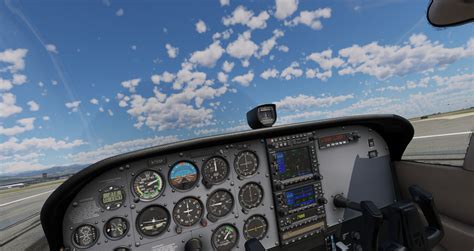
EXTERIORVIBE.BIZ.ID – Many flight simulation enthusiasts wonder if the demanding X-Plane 12 can truly deliver an enjoyable experience on Valve’s portable Steam Deck. While running this realistic flight simulator is certainly possible on the handheld device, achieving optimal performance requires careful optimization and an understanding of its limitations.
X-Plane 12 is known for its incredibly detailed physics, advanced weather systems, and high-fidelity graphics, which typically demand powerful desktop hardware. The Steam Deck, despite its impressive capabilities for a handheld, needs strategic adjustments to handle such a resource-intensive title.
Understanding Steam Deck’s Capabilities for X-Plane 12
The Steam Deck utilizes a custom AMD APU, combining a Zen 2 CPU and RDNA 2 GPU, offering significant graphical prowess for its size. However, X-Plane 12 pushes even high-end systems, making compromises inevitable for smooth gameplay on a portable console.
To run X-Plane 12, the Steam Deck relies on Valve’s Proton compatibility layer, which allows Windows games to function on its Linux-based SteamOS. This process generally works well for many titles, and X-Plane 12 is no exception, though some minor hiccups might occur.
Optimizing Graphics Settings for Smooth Flights
The key to a playable experience lies in meticulously adjusting the in-game graphics settings. Frame rates (FPS) can vary significantly depending on the aircraft, scenery, and weather conditions, so a balanced approach is crucial.
Start by reducing the display resolution within the game to 720p or even 540p if performance struggles. Disabling anti-aliasing or setting it to a minimal level, like FXAA, can also yield noticeable FPS improvements without severely degrading visual quality.
Critical Settings to Adjust
- **Visual Effects:** Significantly lower or disable reflections, shadows, and ambient occlusion. These effects are graphically demanding and offer less impact on a smaller screen.
- **World Objects & Density:** Reduce the number of visible objects, cars, and general scenery density. While it makes the world feel less alive, it greatly reduces CPU and GPU load.
- **Weather & Clouds:** Cloud rendering is extremely taxing in X-Plane 12; set cloud detail and weather effects to their lowest possible settings. Complex weather patterns can halve your frame rate instantly.
Controller Configuration and External Peripherals
The Steam Deck’s built-in controls can be mapped to X-Plane 12, offering a basic flight experience. Utilizing the trackpads for camera control and precise mouse input can enhance navigation within the cockpit.
For a truly immersive experience, connecting external peripherals like a flight stick, throttle quadrant, or even an external keyboard and mouse via a USB-C hub is highly recommended. This transforms the Steam Deck into a more capable, albeit less portable, simulator setup.
Battery Life and Overall Playability
Given X-Plane 12’s demanding nature, expect significantly reduced battery life when playing on the Steam Deck, typically ranging from 1 to 2 hours. Utilizing the Deck’s TDP (Thermal Design Power) limits in the performance overlay can help extend playtime slightly by capping power usage.
While it won’t replace a high-end desktop experience, playing X-Plane 12 on the Steam Deck offers a surprisingly capable portable flight solution. It’s ideal for casual flights, practicing procedures, or exploring new regions when away from your main rig, provided you manage expectations regarding visual fidelity and frame rates.
Frequently Asked Questions (FAQ)
Is X-Plane 12 officially supported on Steam Deck?
While not officially ‘Deck Verified’ with perfect out-of-the-box performance, X-Plane 12 is generally playable on the Steam Deck using Valve’s Proton compatibility layer. Users will need to manually adjust settings for an optimal experience.
What kind of performance can I expect for X-Plane 12 on Steam Deck?
Expect variable frame rates, typically ranging from 15-30 FPS, depending on your chosen aircraft, location, and graphics settings. Achieving a consistent 30 FPS usually requires significant graphical compromises, especially in dense areas or with complex weather.
What are the most important settings to adjust for X-Plane 12 on Steam Deck?
Crucially, reduce resolution (e.g., to 720p or 540p), lower or disable anti-aliasing, and significantly scale back visual effects like reflections, shadows, and ambient occlusion. Also, minimize world object density and cloud detail for better performance.
Can I use external flight sticks with my Steam Deck for X-Plane 12?
Yes, the Steam Deck supports external peripherals. You can connect flight sticks, throttle quadrants, keyboards, and mice via a USB-C hub, significantly enhancing the simulation experience beyond the built-in controls.
Is X-Plane 12 enjoyable on the Steam Deck despite the compromises?
For users who understand the need for graphical compromises and don’t expect desktop-level visuals, X-Plane 12 on the Steam Deck offers a viable and enjoyable portable flight simulation experience. It’s excellent for casual flights and procedural practice on the go.
Written by: Emily Taylor
