
Table of Contents
EXTERIORVIBE.BIZ.ID – Integrating your Stream Deck Mini with Discord can significantly enhance your communication and workflow efficiency. This compact control panel provides instant access to a myriad of actions, transforming how you interact within your Discord servers.
For anyone engaged in gaming, content creation, or simply seeking a more streamlined communication experience, this powerful duo offers unparalleled convenience. Let’s explore how the Stream Deck Mini revolutionizes your Discord usage.
Understanding the Stream Deck Mini
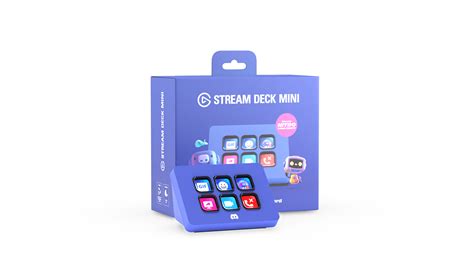
The Elgato Stream Deck Mini is a compact, customizable control interface featuring six LCD keys. Each key can be programmed to trigger a variety of actions with a single press, from launching applications to executing complex multi-actions.
Designed for quick accessibility, it puts essential functions directly at your fingertips, reducing the need to alt-tab or remember intricate keybinds.
Why Integrate Stream Deck Mini with Discord?
The primary benefit of connecting your Stream Deck Mini to Discord is the instant control it offers over common communication functions. This integration allows you to react faster and manage your audio and communication settings seamlessly.
It frees up your keyboard for other tasks, creating a more professional and efficient setup, especially during intense gaming sessions or live streams.
Key Discord Actions to Automate
With the Stream Deck Mini, you can program a wide range of Discord-specific actions. Basic yet crucial functions like muting your microphone or deafening your headphones become single-button presses.
More advanced actions include switching between voice or text channels, activating push-to-talk, toggling stream overlays, or even playing sound effects directly into your call, all without missing a beat.
Setting Up Stream Deck Mini for Discord
Setting up your Stream Deck Mini for Discord is a straightforward process. First, ensure you have the Elgato Stream Deck software installed on your computer.
Within the software, you can drag and drop Discord-specific actions onto your desired keys, then customize their appearance and functionality to suit your needs.
Tips for Optimal Use
To maximize your experience, consider creating different profiles for various Discord servers or activities. For instance, a ‘Gaming’ profile could prioritize mute/deafen, while a ‘Work’ profile might focus on screen sharing controls.
Utilize multi-actions to perform several steps with one button, like joining a specific voice channel and muting your mic simultaneously, further streamlining your workflow.
In conclusion, the Stream Deck Mini x Discord combination offers a superior level of control and convenience for anyone using the popular communication platform. It’s an investment in efficiency, allowing you to manage your interactions with speed and precision.
Embrace this powerful tool to elevate your Discord experience, whether for casual chats, competitive gaming, or professional collaborations.
Written by: Sarah Davis
